Class management
A class keeps students in one place so the teacher can assign homework, run proctored exams and follow results over time.
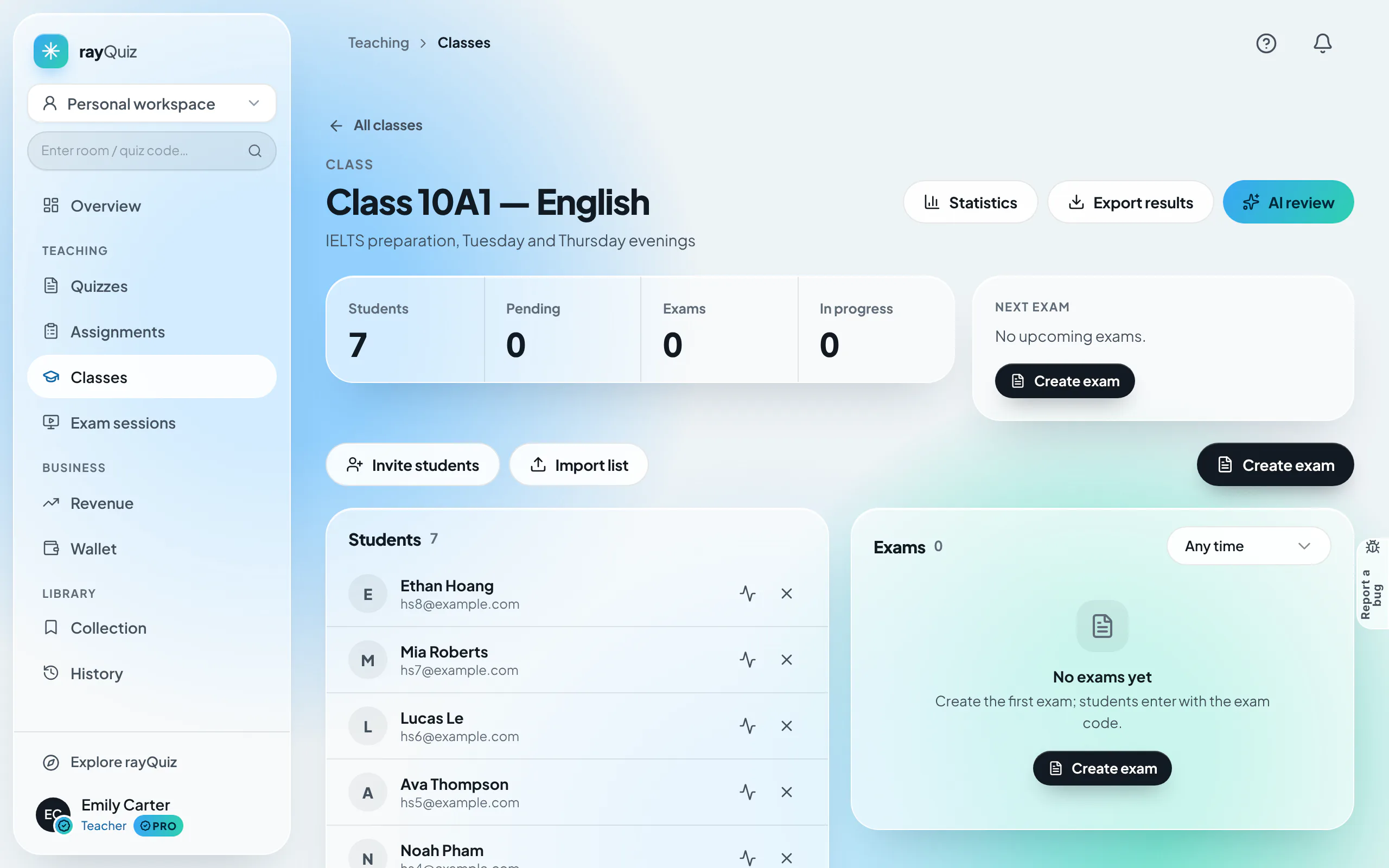
Create a class
Open Classes, select Create class, and enter the class name and a description (for example the timetable). The new class appears in the list with its student count and number of exams.
Invite students
Classes do not use join codes. Students join in one of three ways:
- Email invitation: enter the student’s email in the Invite students dialog; the student joins after accepting.
- Class link: create a class link that stays valid for 7 days and share it in the class group.
- Import a list: add many students at once from an existing list.
Assign homework
Under Assignments, choose a published quiz and one or more classes, then set the opening time, deadline, duration, maximum attempts and what students see after submitting. Students are notified and find the work in "My work".
Proctored exams
Create exam on the class page sets up an exam the whole class takes at the same time, with a waiting room and live monitoring. See Host online exams.
Follow results
- Assignment page: students not started, in progress and submitted, average and median score, pass rate, and each student’s score.
- Question analysis: the correct rate for every question, showing what the class still finds difficult.
- Class statistics: how scores change across assignments.
- Export results: download the gradebook as CSV.
- AI review: a written summary of the class’s progress with revision suggestions.
Step-by-step guides with screenshots
- Create an online class, invite students and assign homework
- Review results, class statistics and export grades
- Students: join a class and complete assigned homework
Last updated: 08/11/2026