Take tests and review results
Join an online class and complete assigned coursework on time
Accept classroom invitations, access tasks under "My work", manage deadlines, and review instructor feedback.
When your teacher creates a class on rayQuiz, assignments arrive with clear open dates and deadlines. Sign in using the exact email address your teacher invited to ensure all coursework is visible.
3 min · 5 steps
- 1
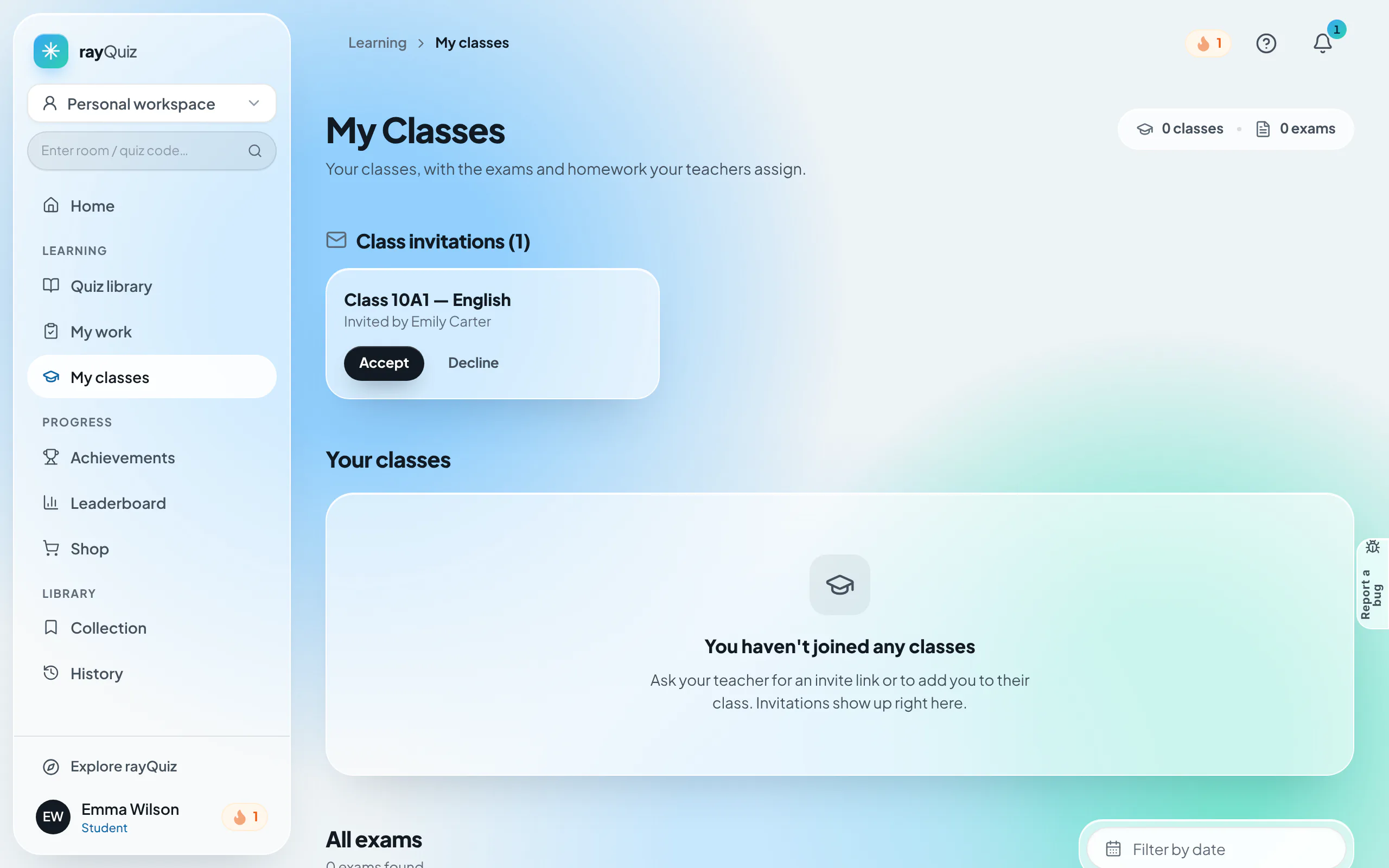
Accept the class invitation
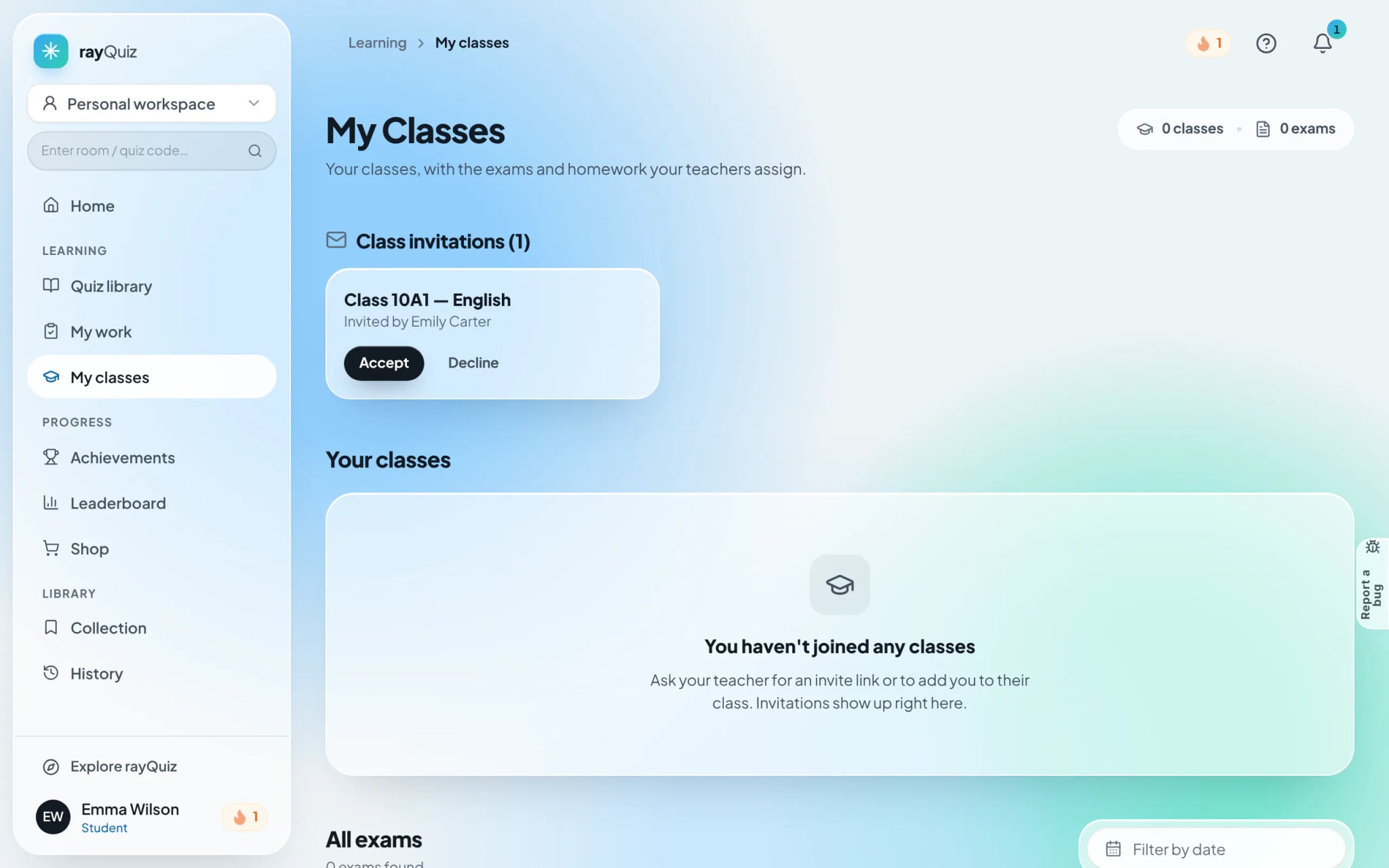
Check the email sent by rayQuiz or navigate to "My classes". Under "Class invitations", click "Accept" to enroll. If your teacher shared a direct invite link (rayquiz.com/class/join/...), simply open the link while logged in and click "Join class".
Tip: Ensure you are signed in with the invited email address. Logging in under a different address prevents the invite from matching your account.
- 2
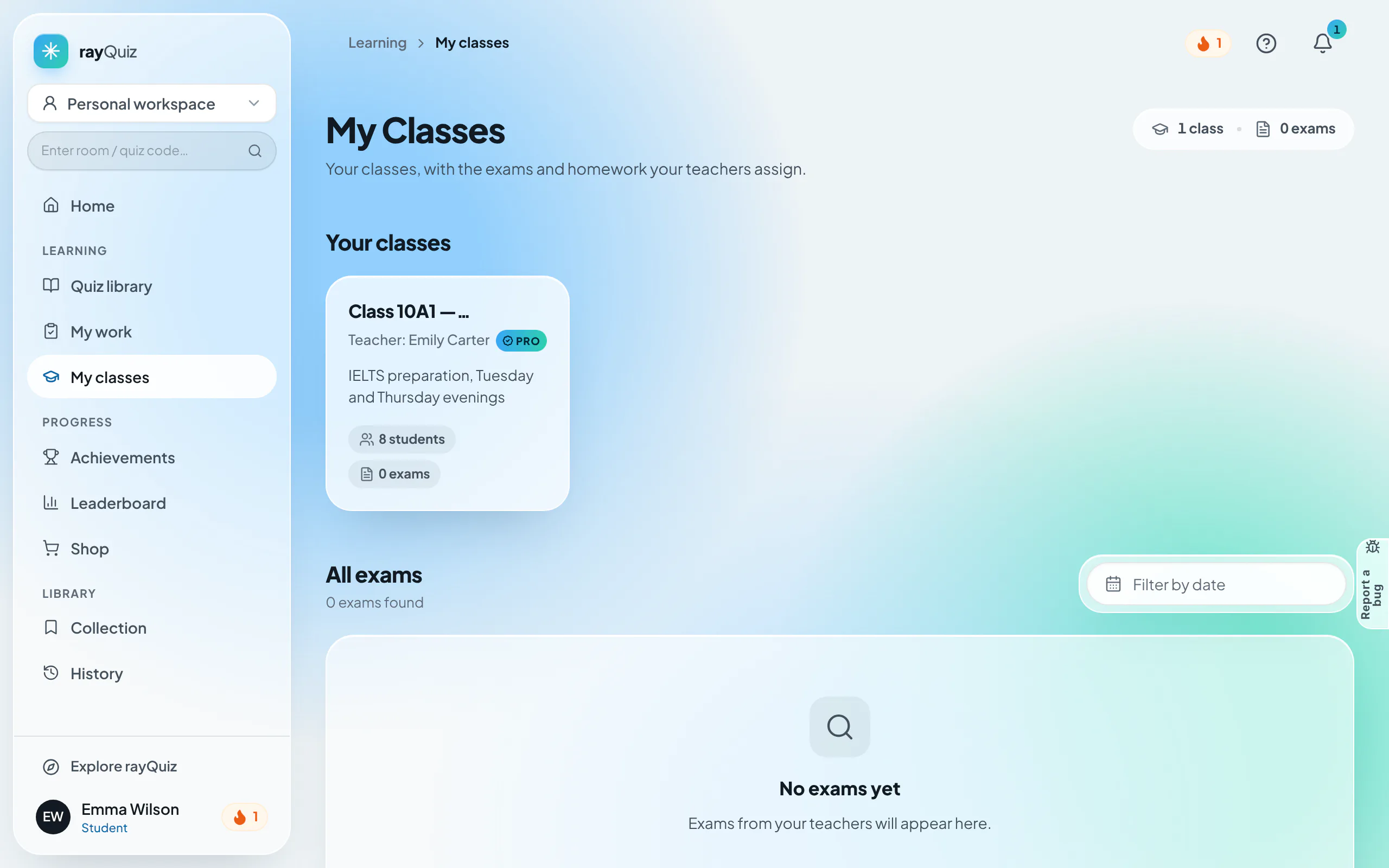
Inspect your active enrolled classes
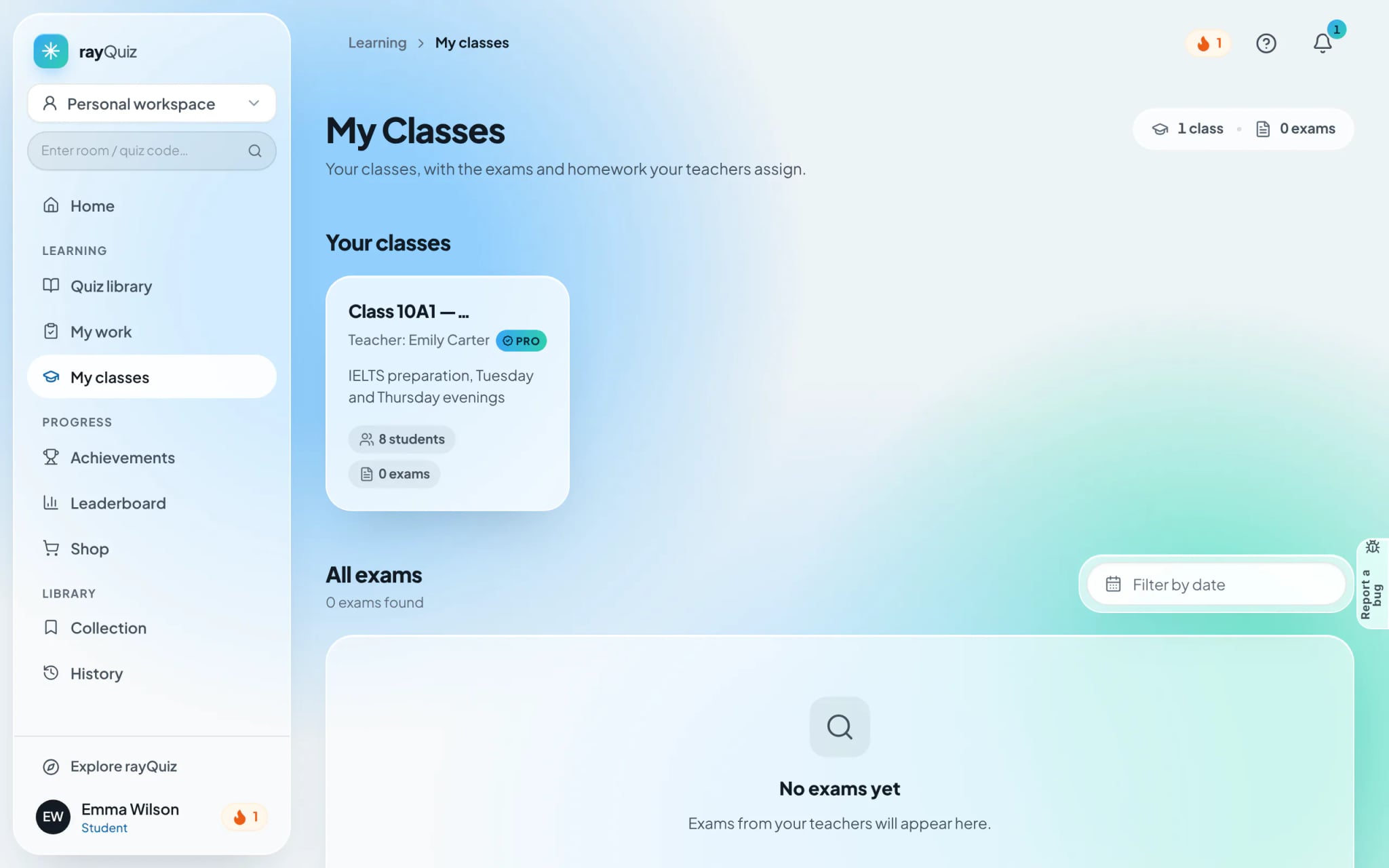
Once accepted, the class is listed under "Your classes" displaying the instructor name, classmate headcount, and assigned exams. Click on the class card to access class-specific coursework.
- 3
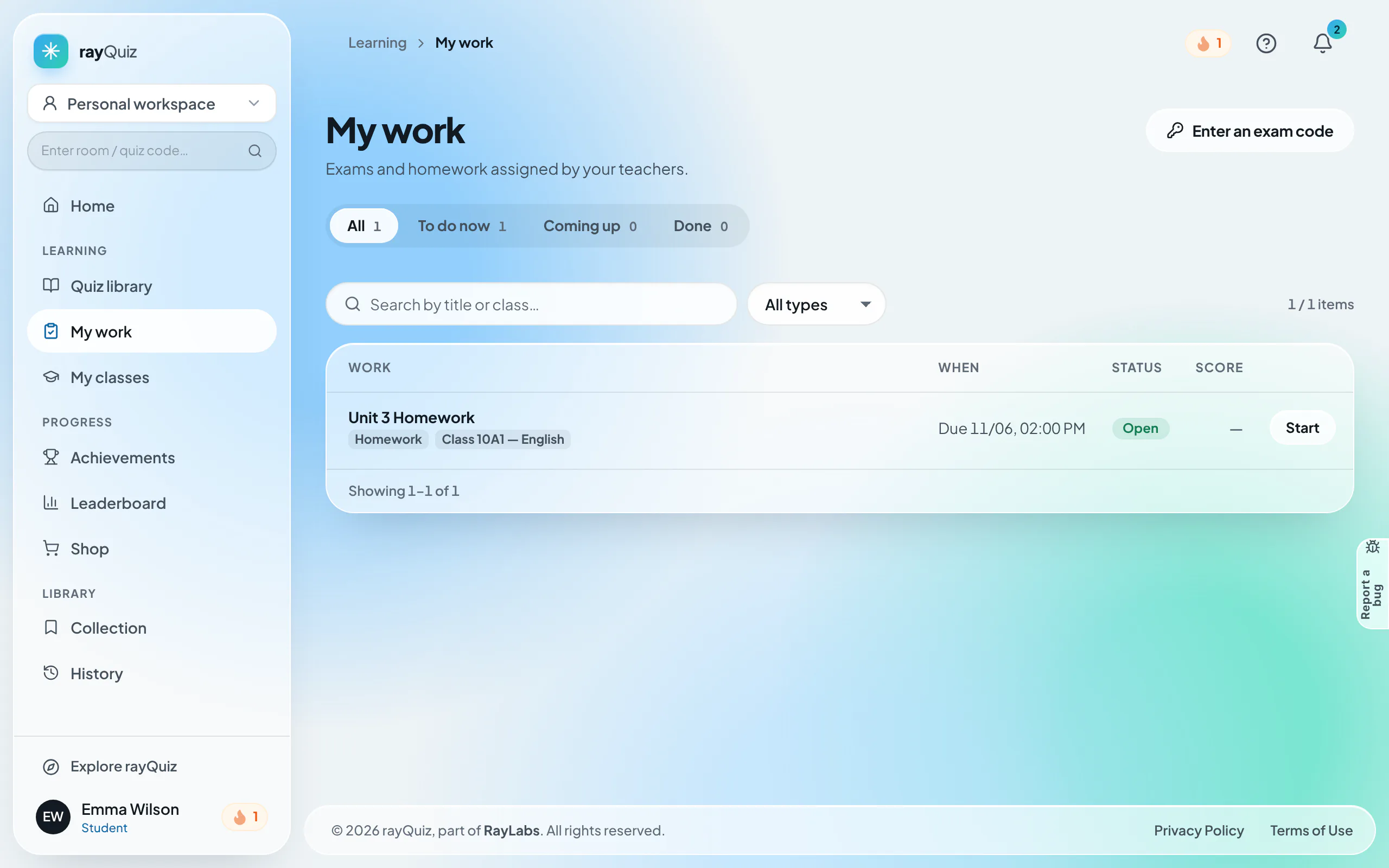
Locate pending homework under "My work"
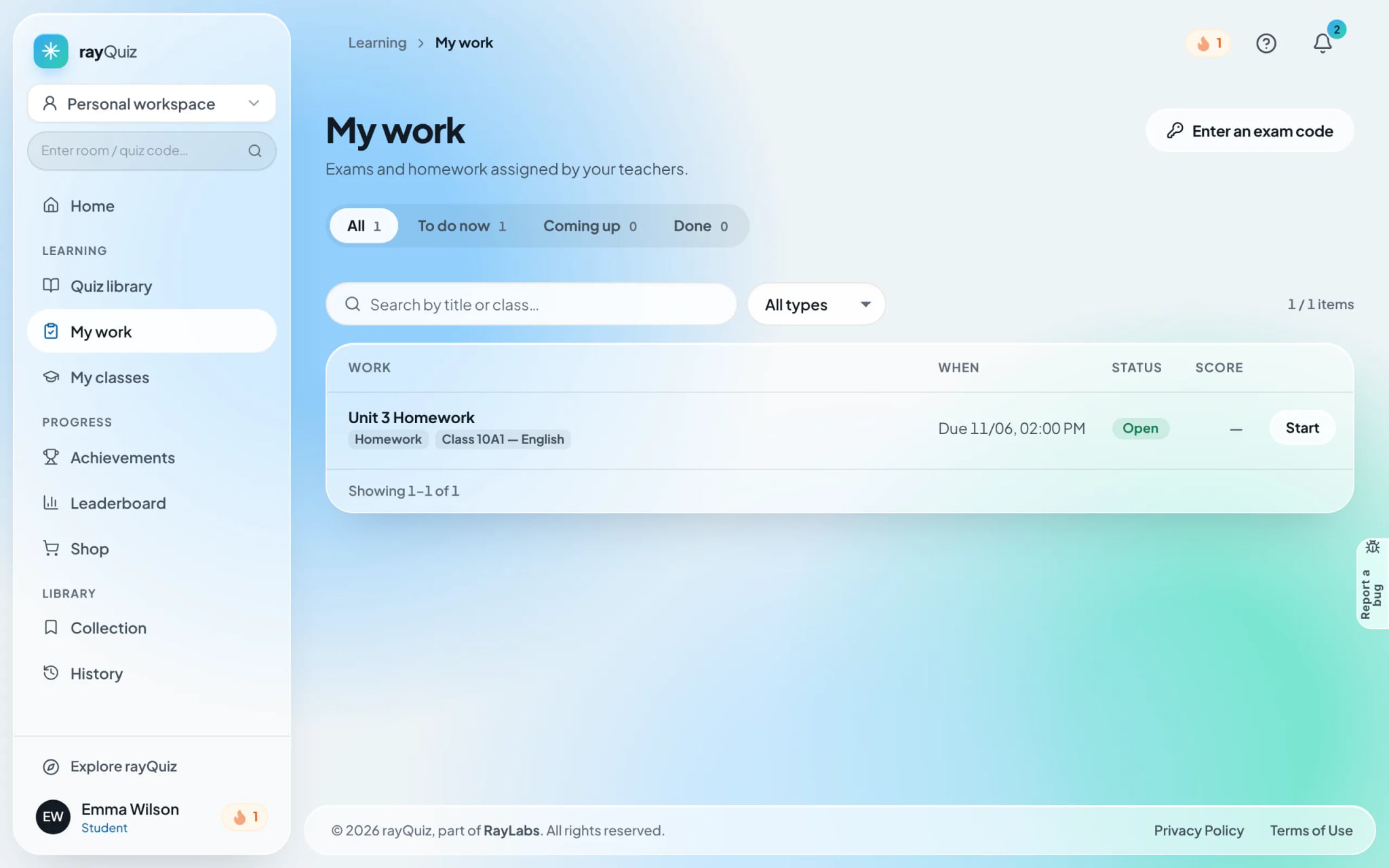
Go to "My work" in the navigation bar. This dashboard aggregates all assignments across your classes, categorized into In progress, Upcoming, and Done with clear deadlines. Click "Start" or "Keep working" to launch an assignment.
- 4
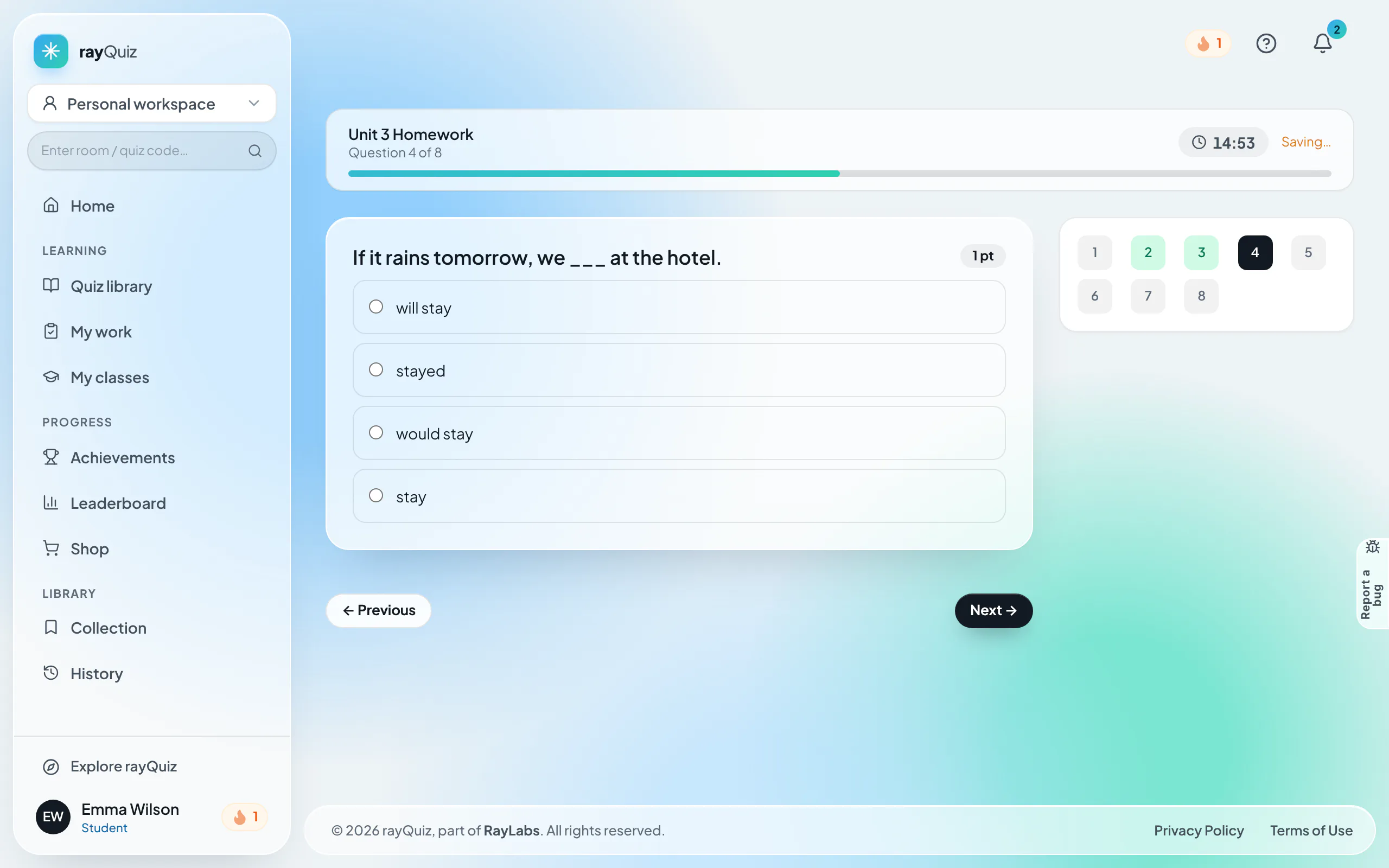
Complete questions with automatic progress saving
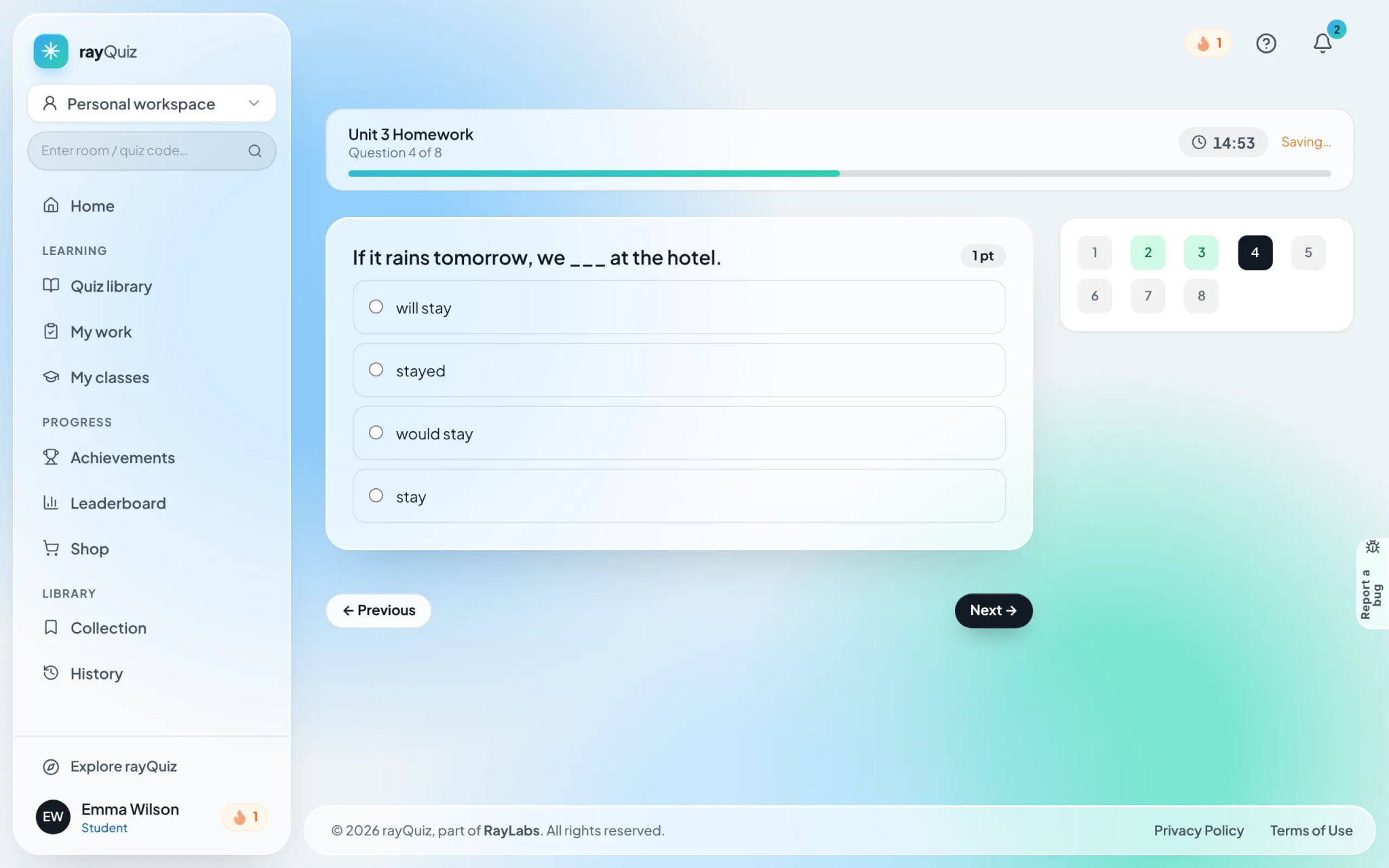
The test screen displays the assignment title, current position, and time remaining. The right-hand question strip tracks completed vs unanswered items. rayQuiz auto-saves progress continually, allowing you to pause and resume prior to the deadline.
- 5
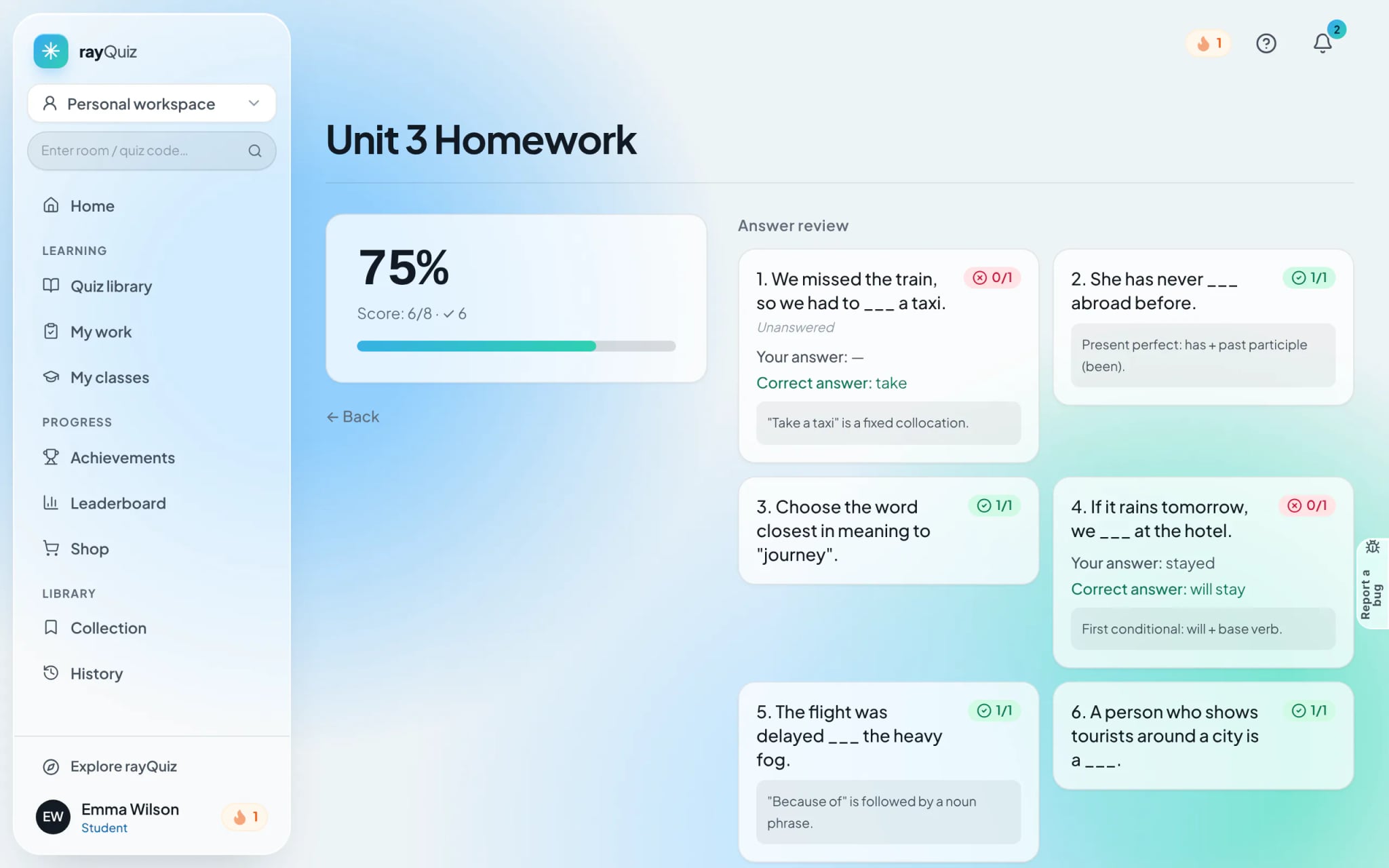
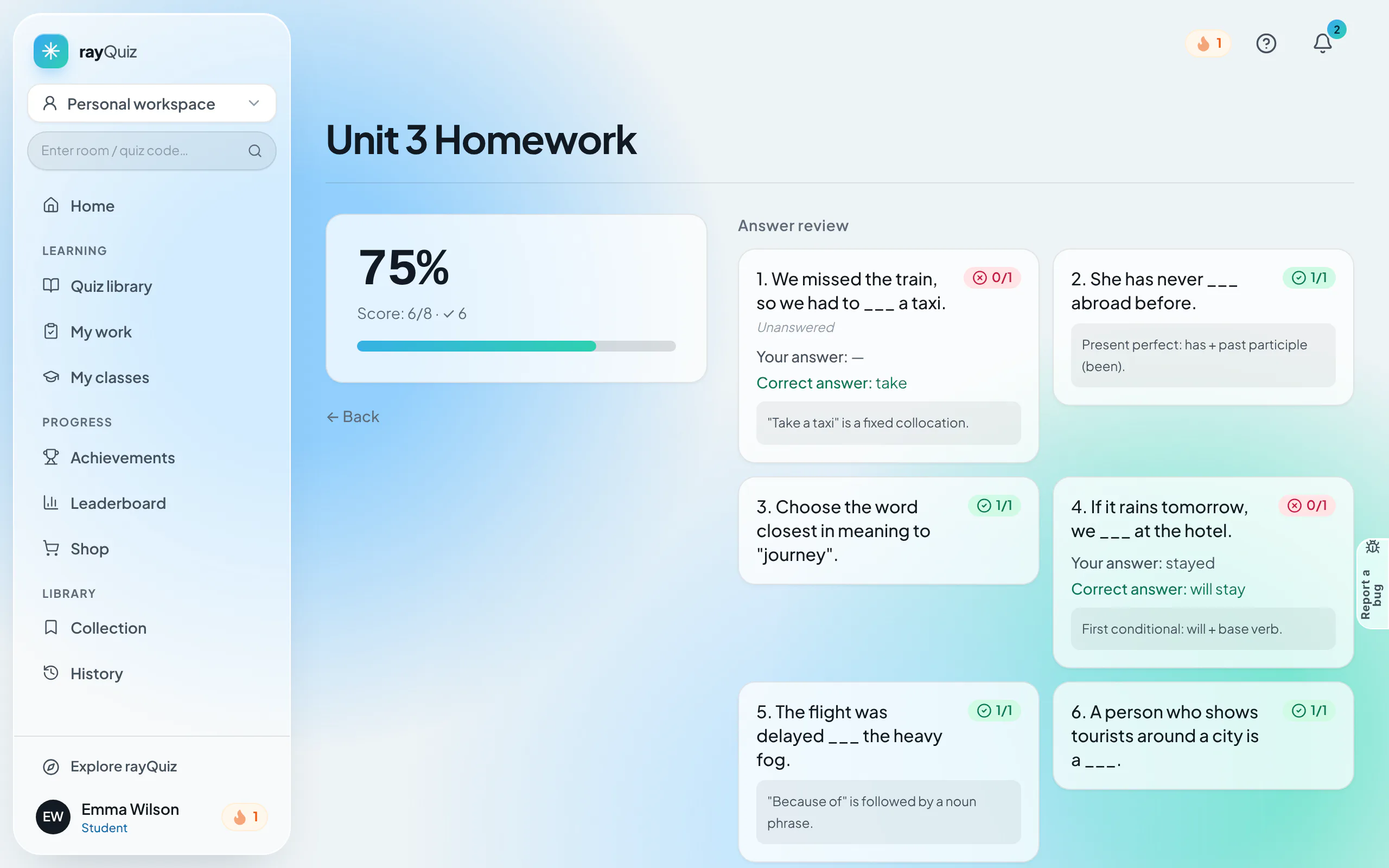
Submit your homework and review feedback
Click "Submit" upon finishing. The results dashboard displays your grade, completion statistics, and question breakdown according to your instructor’s disclosure settings.
Frequently asked questions
- What should I do if I do not see the class invitation email?
- Check your spam or junk folder. Alternatively, ask your teacher to generate a 7-day shareable join link and open it in your browser while signed in.
- Can I submit homework after the deadline has passed?
- No. Assignments lock automatically once the deadline expires. You must reach out to your instructor to request a deadline extension if needed.