Take tests and review results
Take an online quiz and review detailed answers and explanations
Complete candidate workflow: open test links, select display layouts, flag questions, submit responses, and review targeted mistakes.
Candidates can access tests directly via links distributed by teachers or through the rayQuiz public repository. Assessments can be taken in Guest mode or via authenticated accounts to maintain longitudinal progress records.
3 min · 7 steps
- 1
Open the assessment link and provide a display name
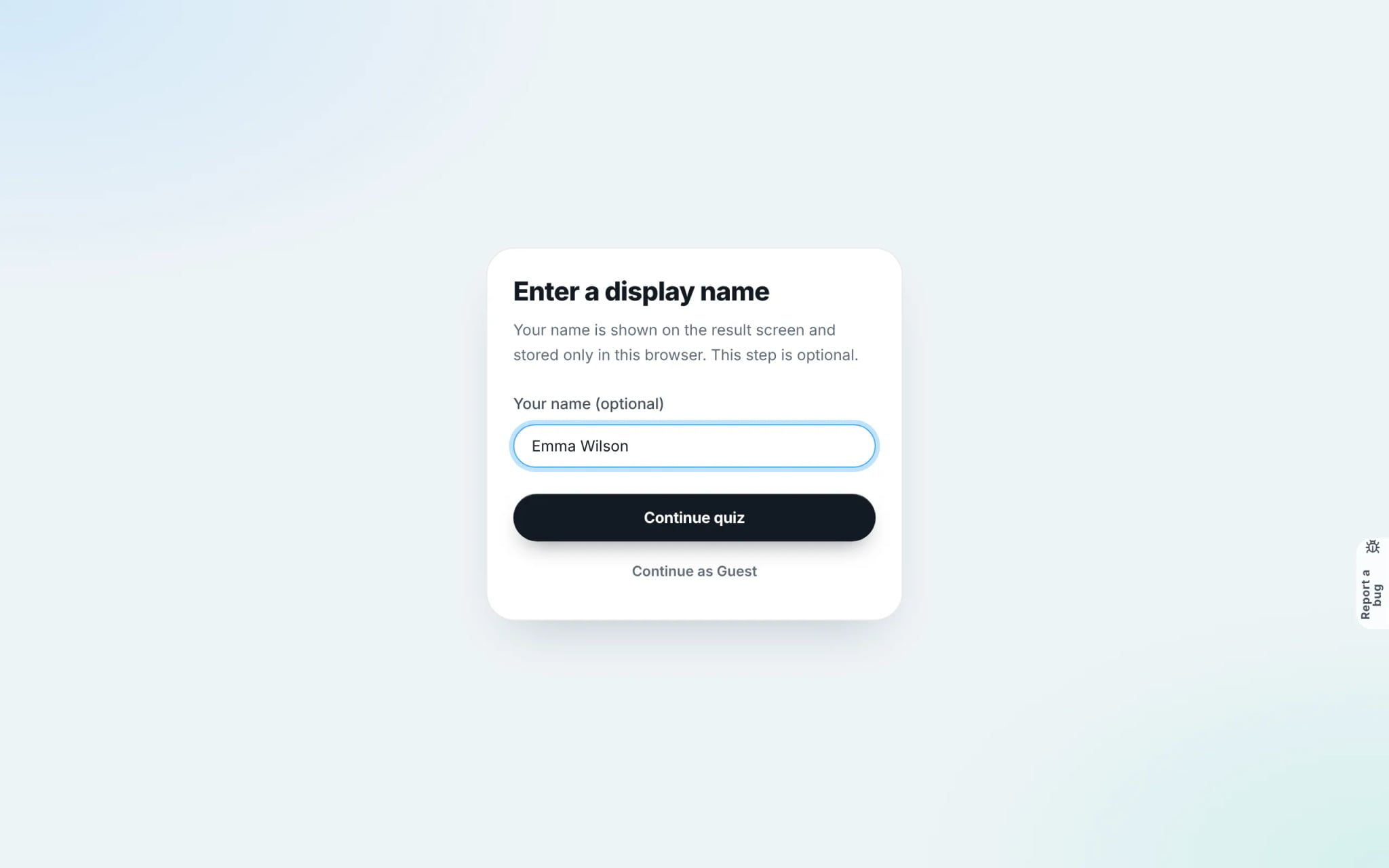
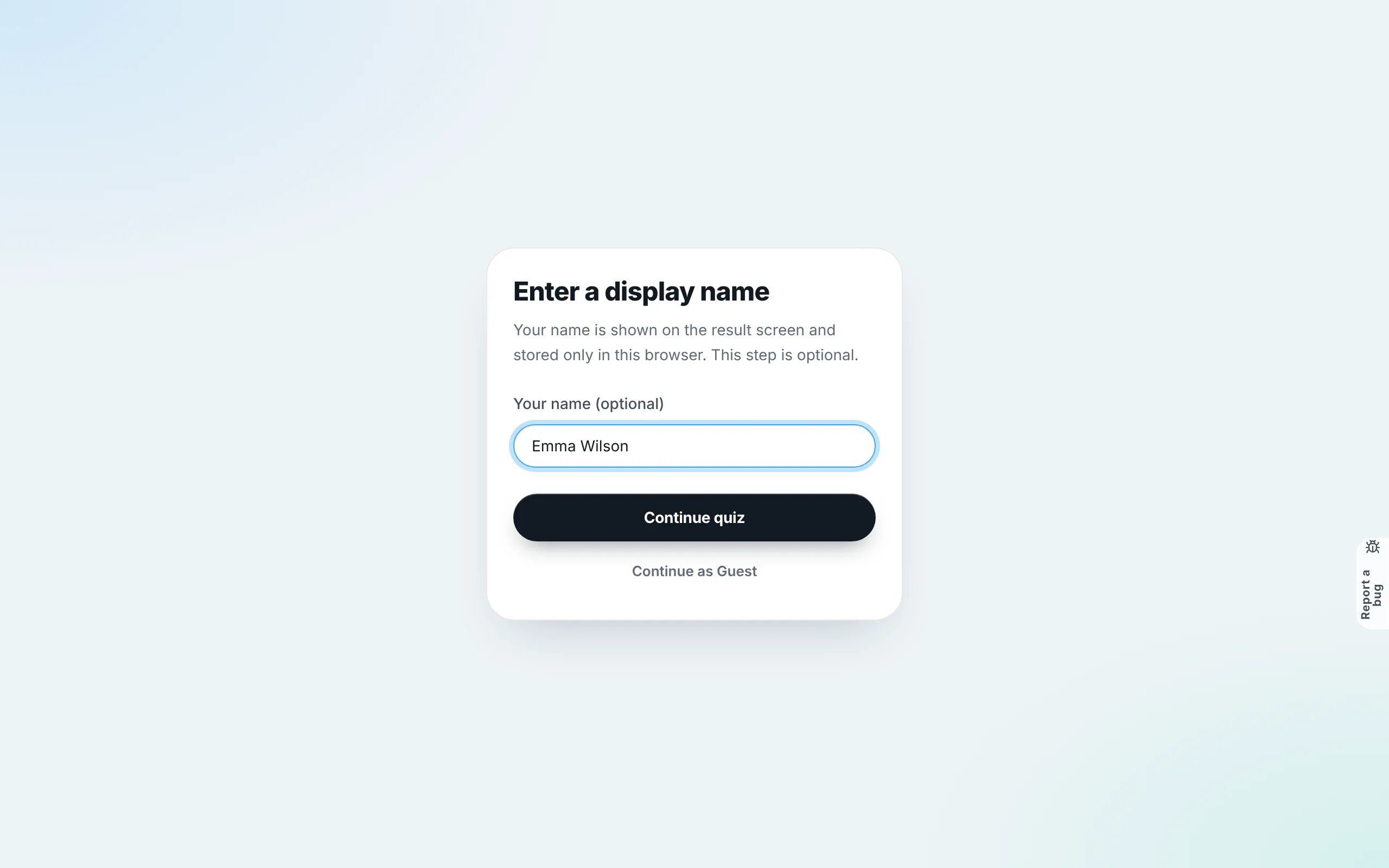
Open the provided test link. The "Enter a display name" prompt requests a candidate name for gradebook identification. For independent practice without identity tracking, select "Continue as Guest".
Tip: Signed-in students have their names filled automatically and scores synced straight to their study records.
- 2
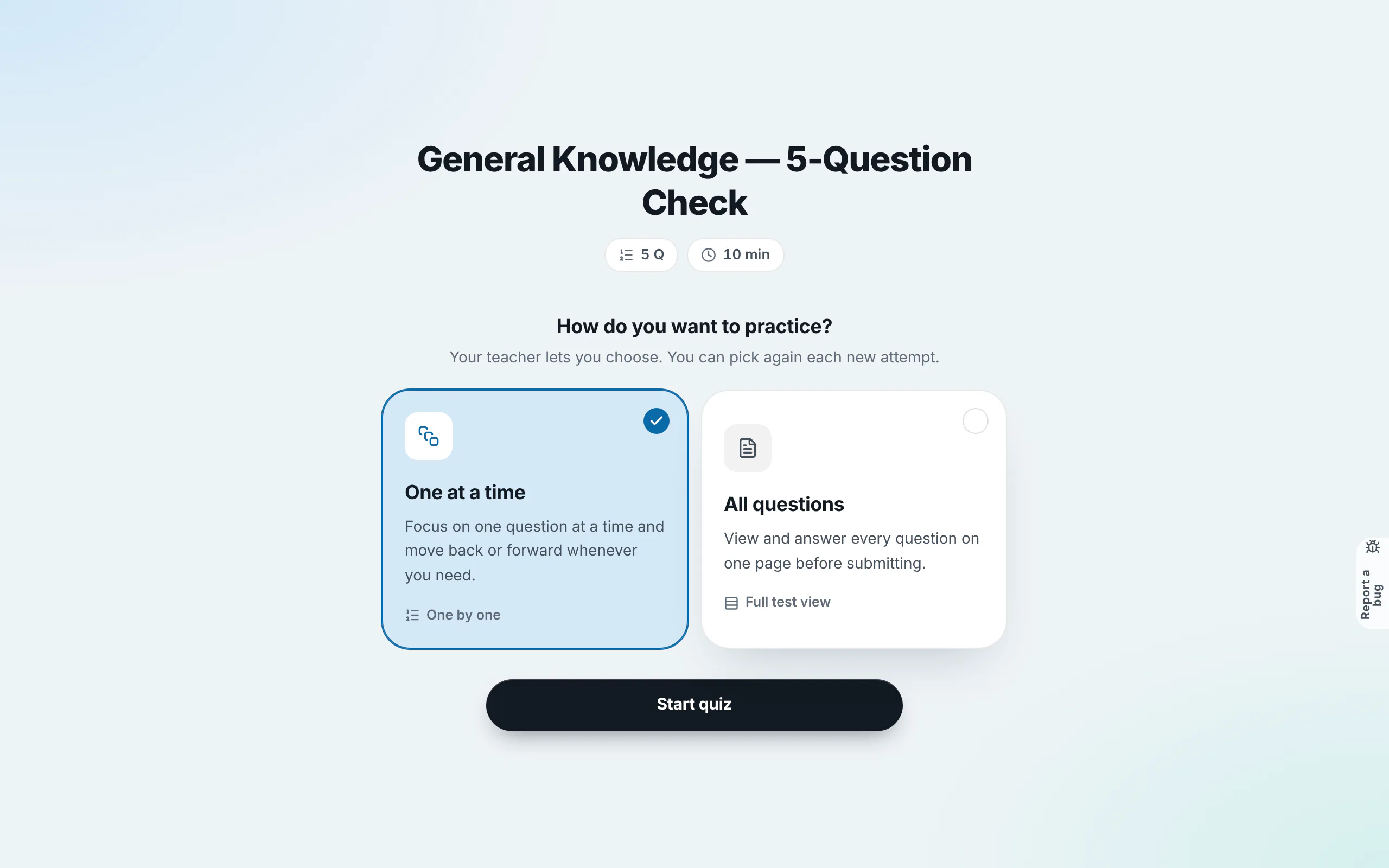
Select your preferred test-taking layout
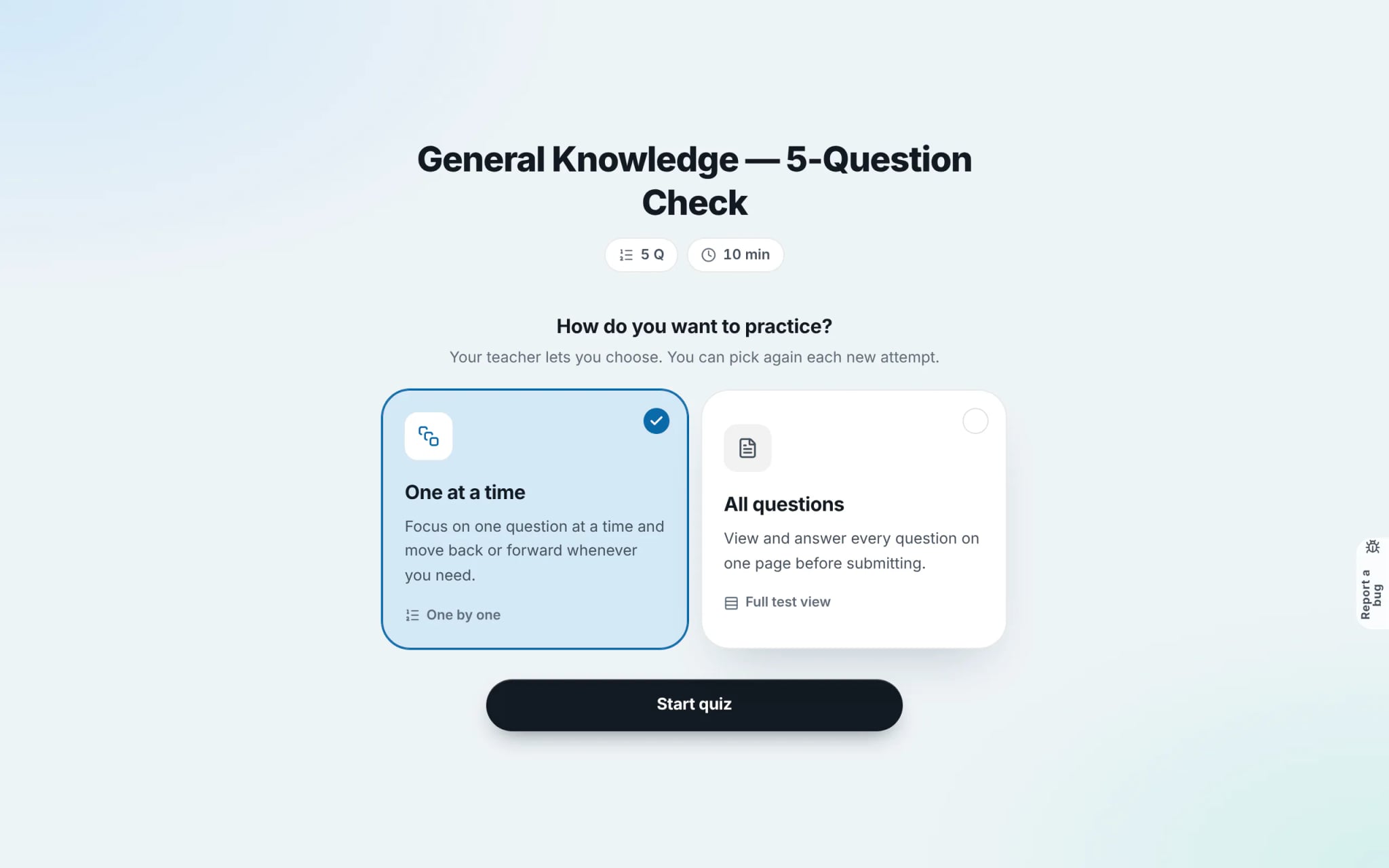
Select between "One at a time" (displays a single question per screen to avoid distractions) or "All questions" (lists every question on one scrollable page for rapid review). Once chosen, click "Start quiz" to begin the countdown timer.
Tip: Standardised exam formats such as IELTS or VSTEP use fixed multi-part layouts matching official test rules, bypassing this selection.
- 3
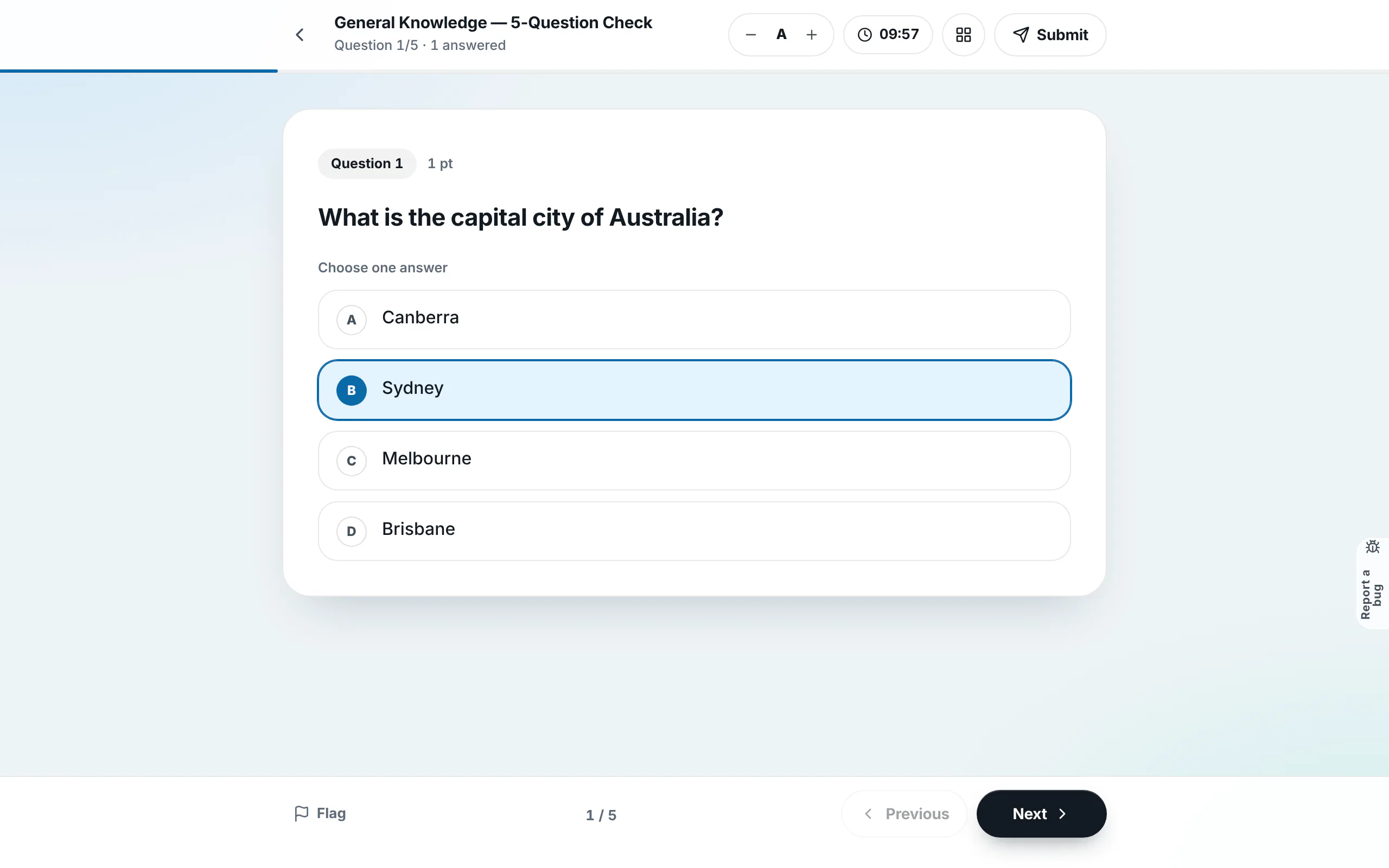
Select answers and flag questions for review
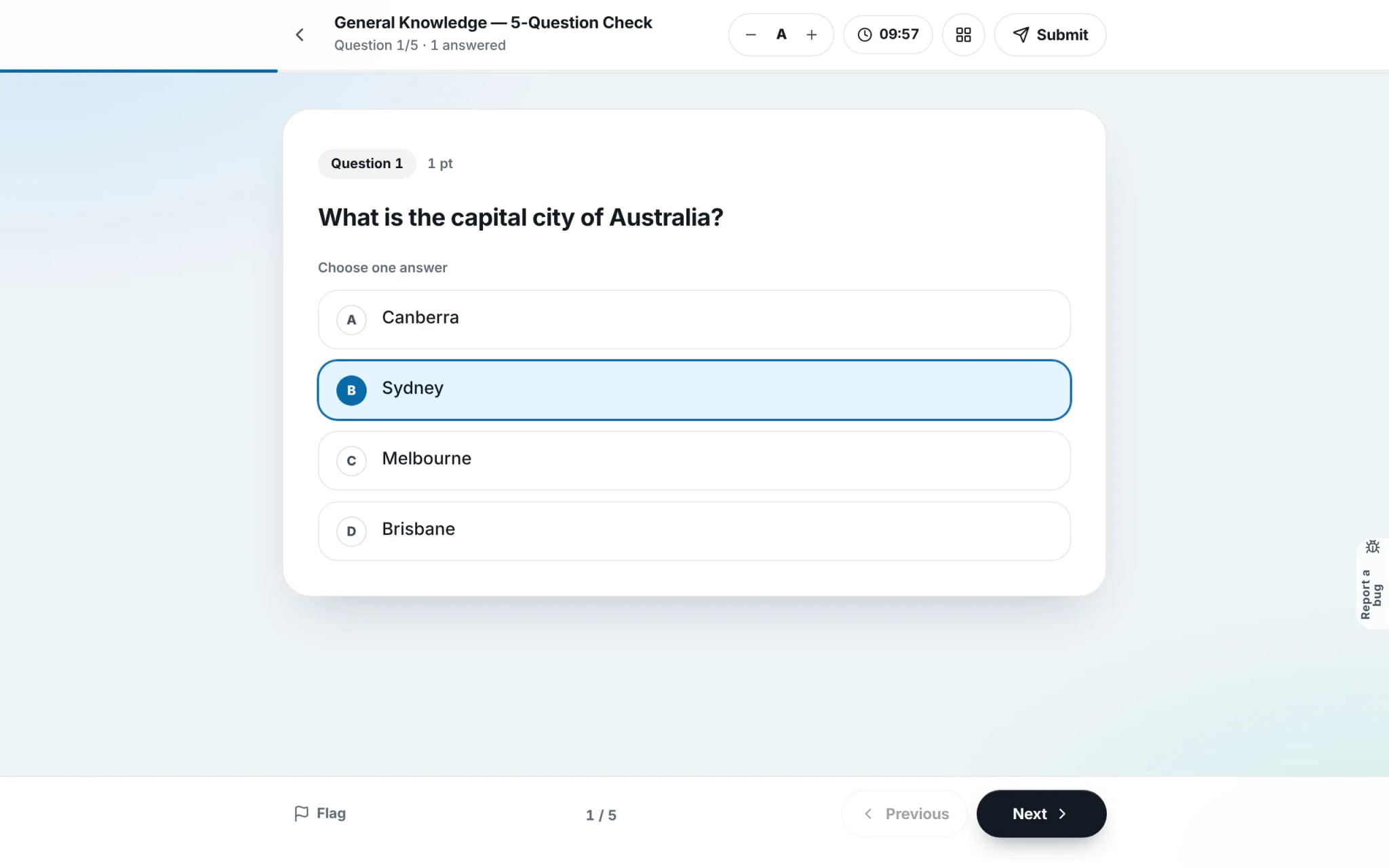
Click your answer choice and press "Next". If you are unsure about an answer, click the "Flag" button to bookmark it for later. Use the A− and A+ buttons in the navigation bar to adjust font size, and keep an eye on the remaining time counter.
- 4
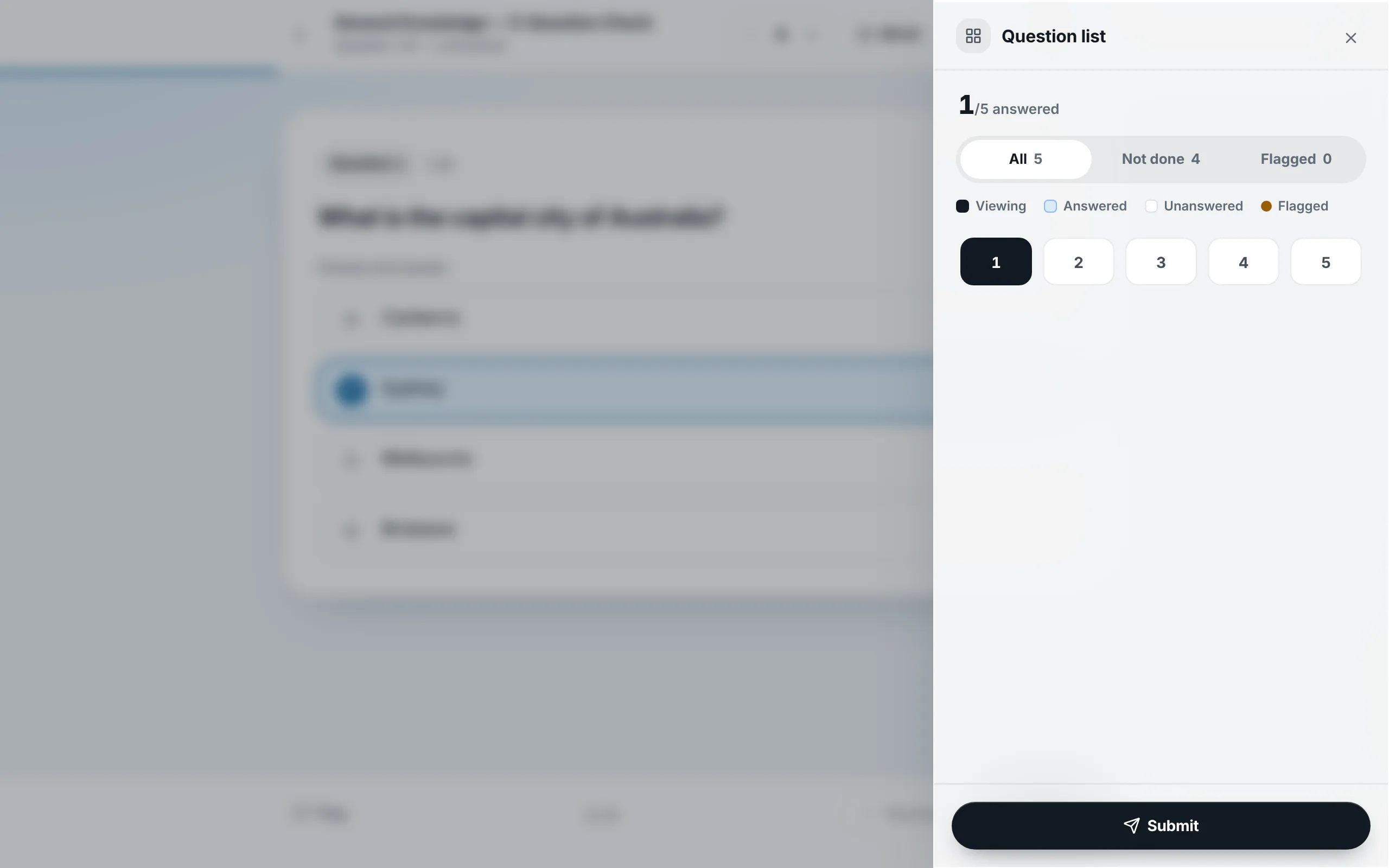
Open the question list to track uncompleted items
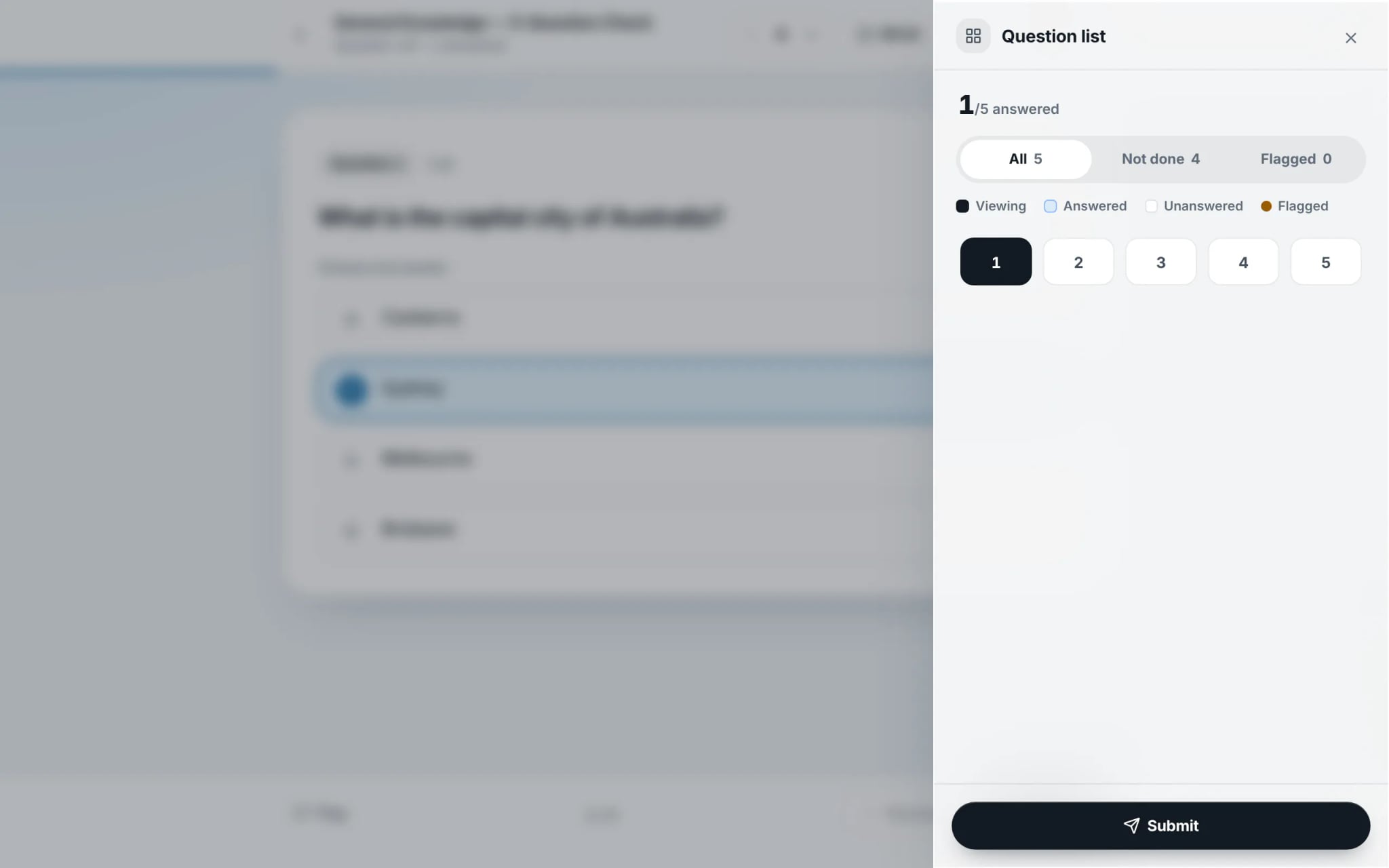
Click the grid icon on the top header to open the "Question list". Filter by "Not done" to spot unanswered questions immediately, or "Flag" to review doubtful questions. Simply click on any question number to jump straight to it.
- 5
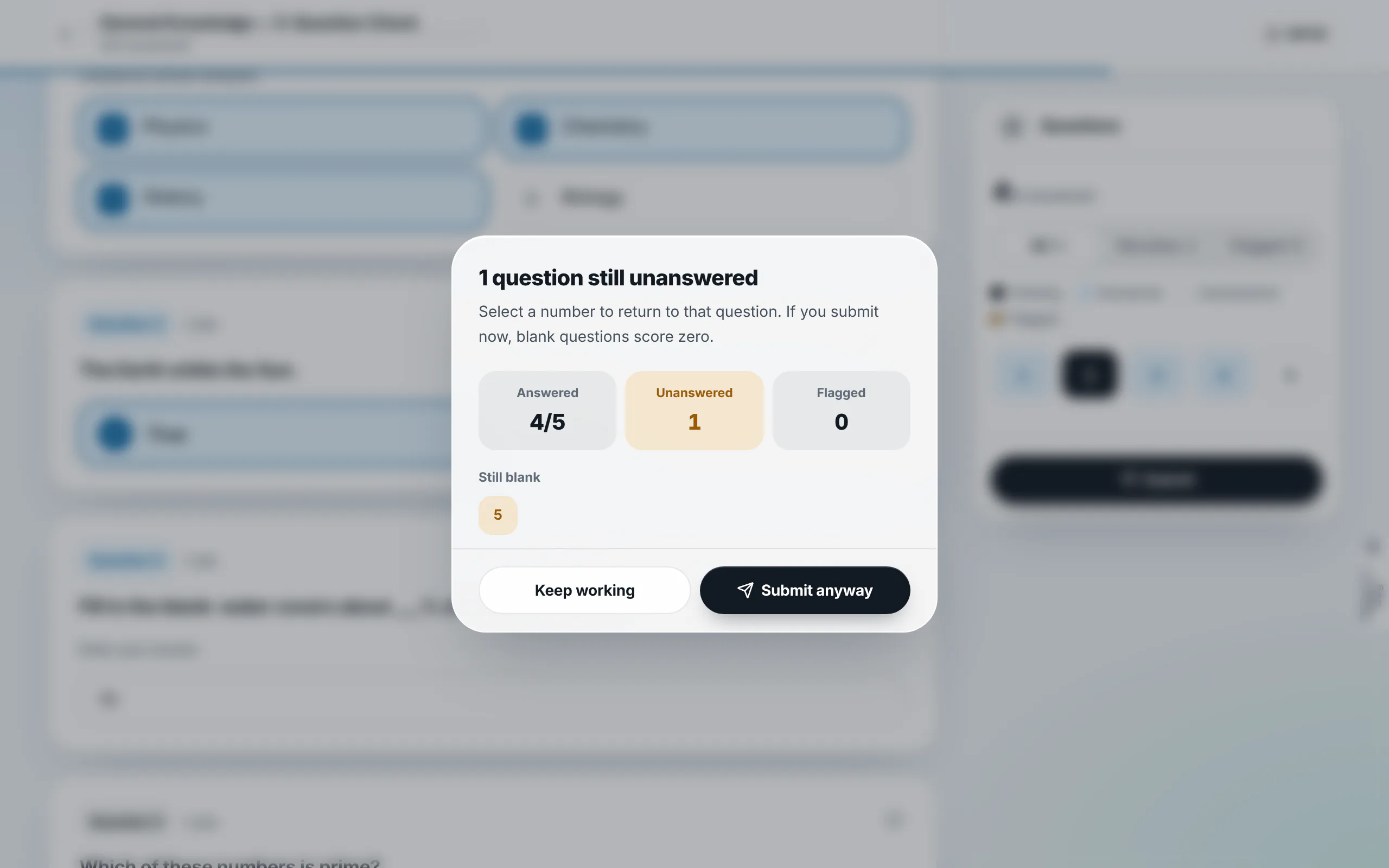
Review and confirm your submission
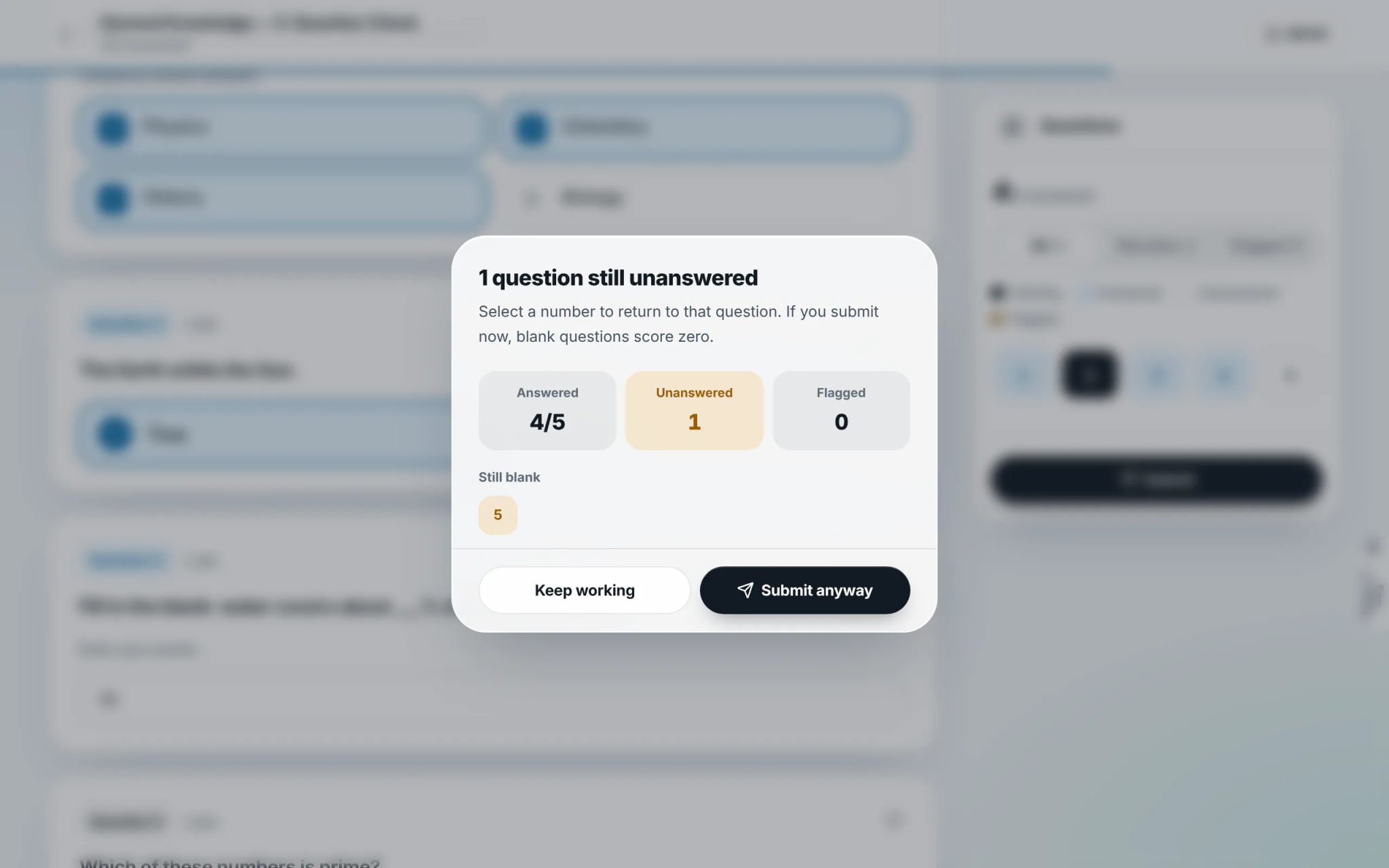
Once finished, click "Submit". If any questions remain blank, rayQuiz alerts you with the exact count and question numbers. Click "Keep working" to answer them, or click "Submit anyway" to finalise your test.
- 6
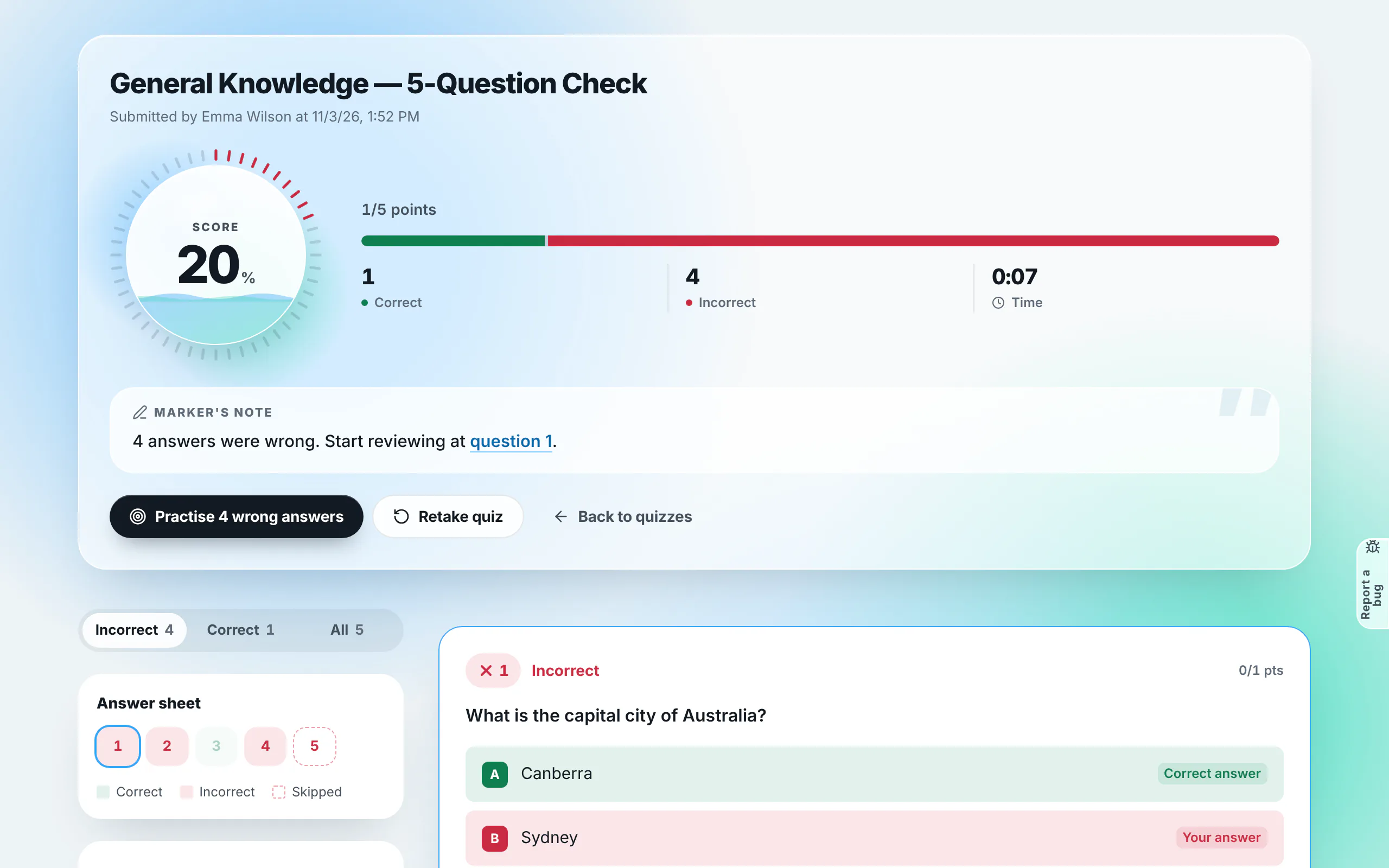
Review your score, correct answers and explanations
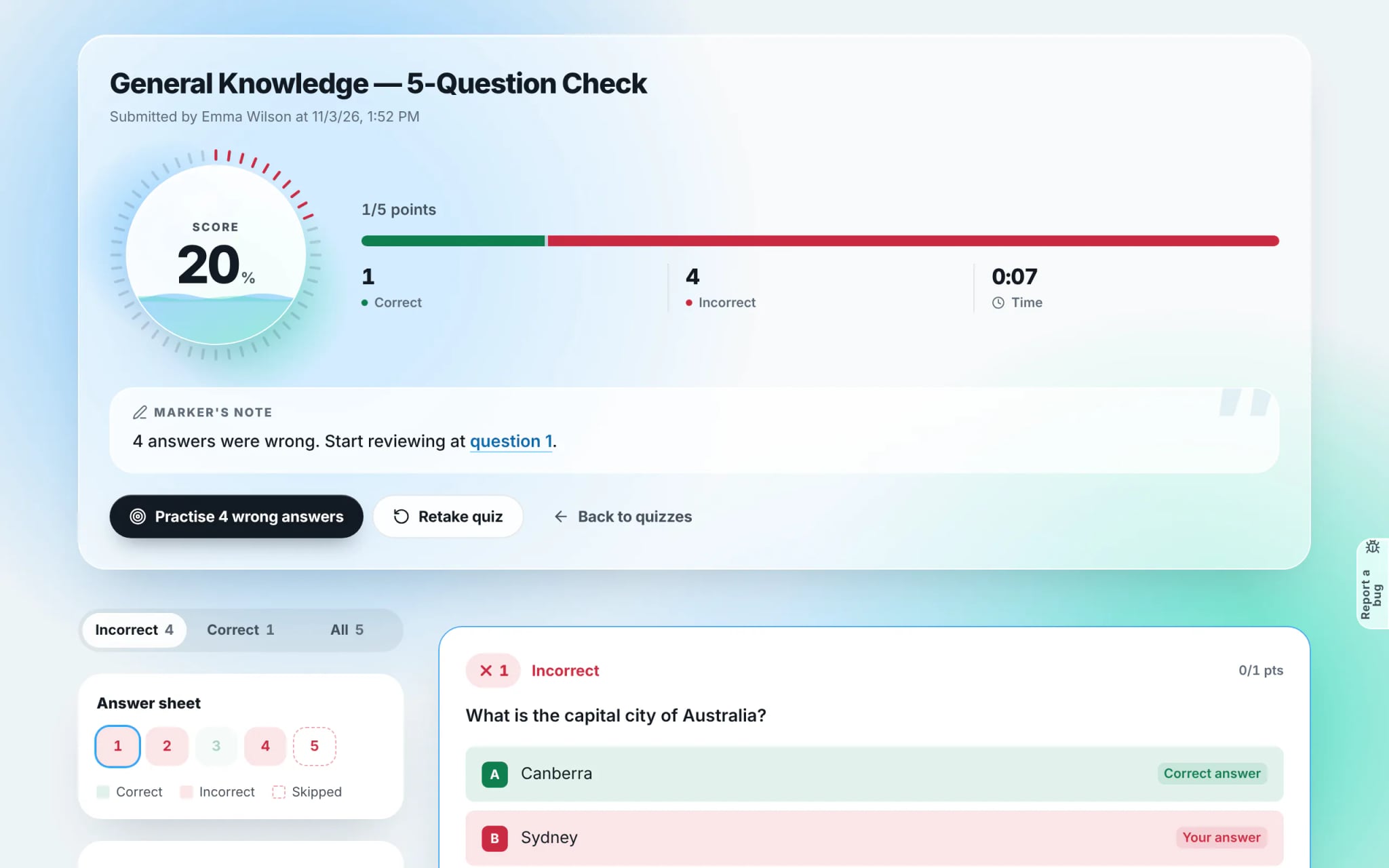
The results screen highlights your overall score, correct/incorrect totals and duration. Switch to the "Incorrect" tab to analyse missed questions, compare your choice against the key, and read the teacher’s detailed explanation.
- 7
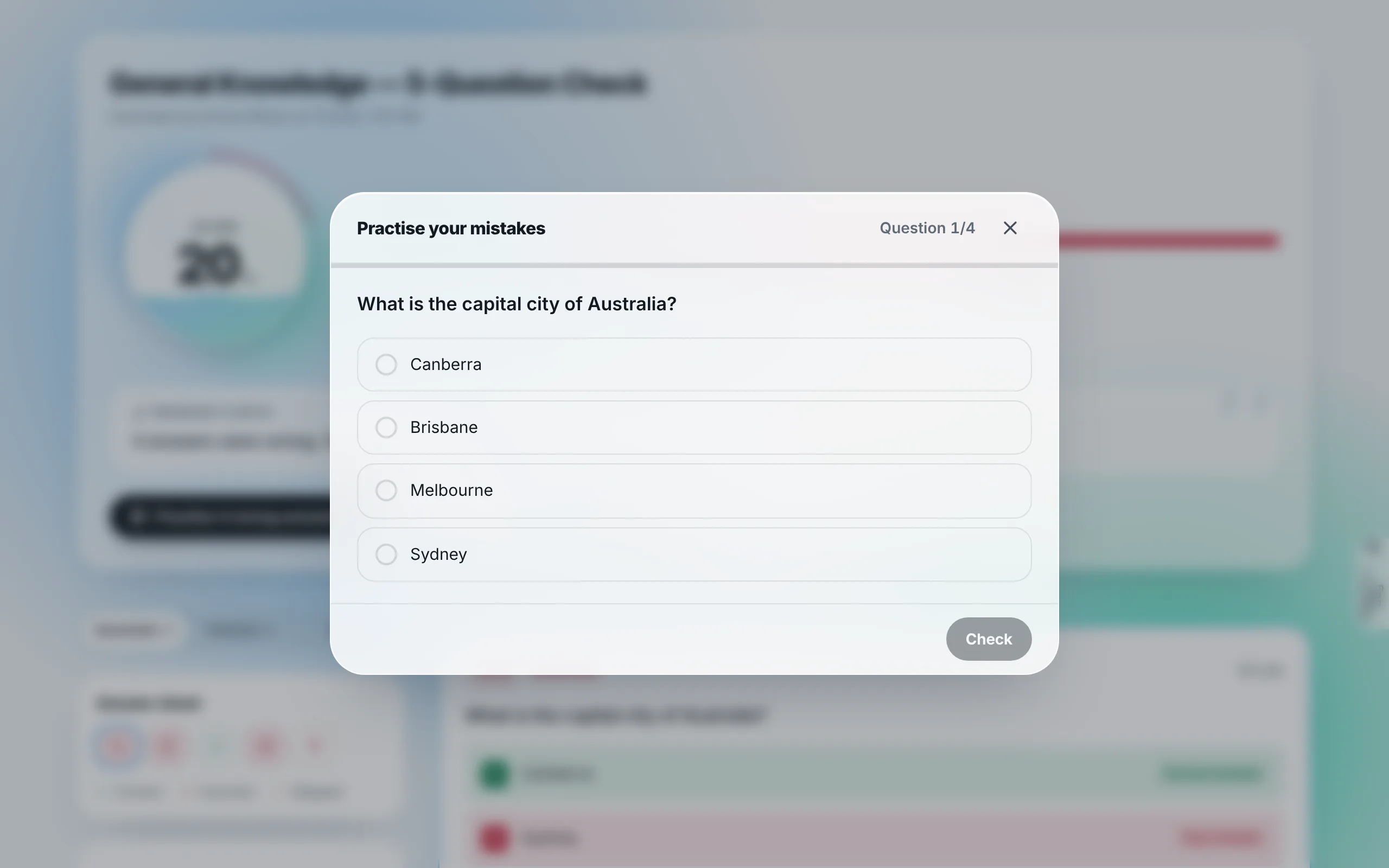
Practise only the questions you answered incorrectly
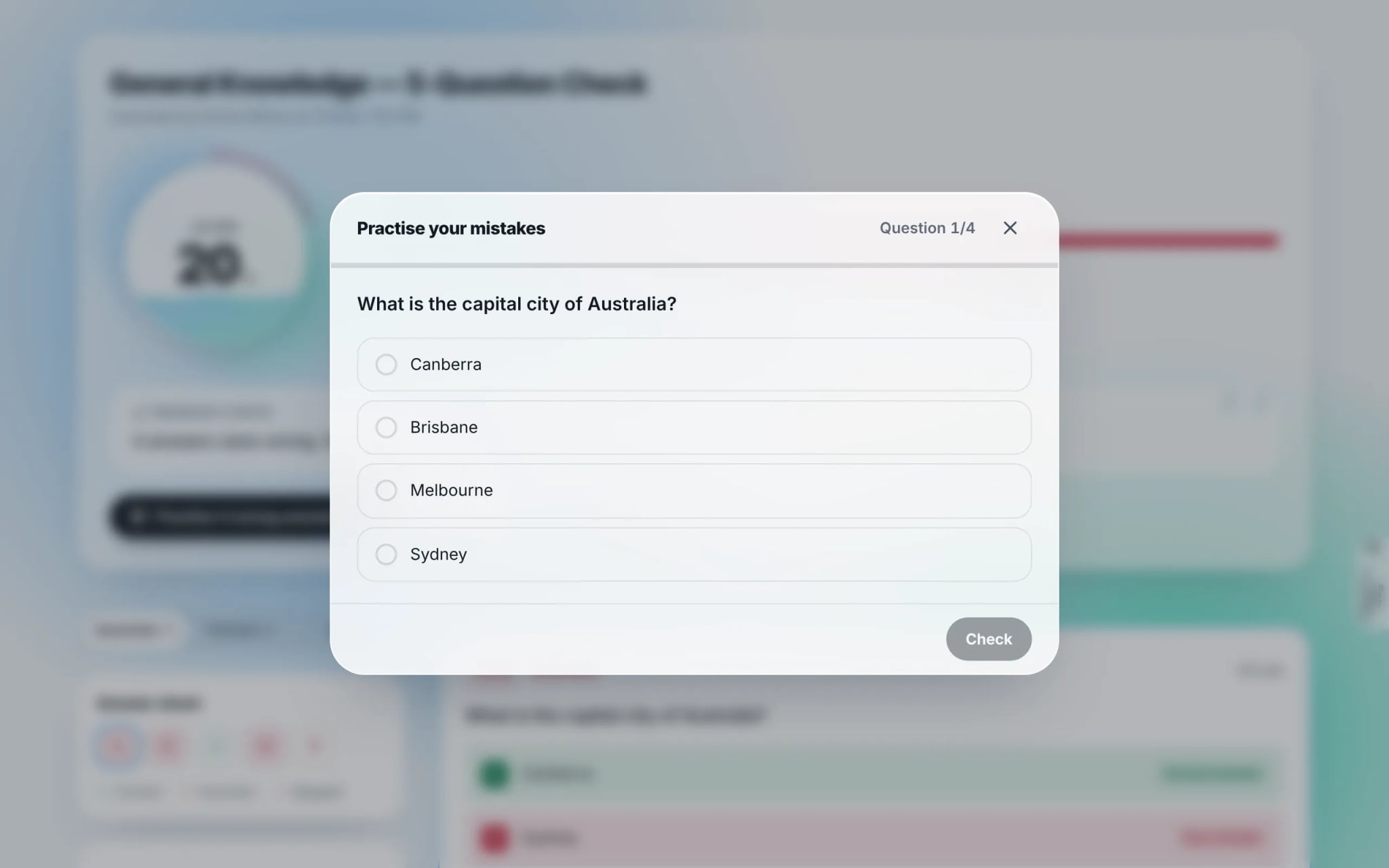
To reinforce weak spots, click "Practise wrong answers". rayQuiz instantly spins up a focused revision drill containing only your missed items. If you wish to re-attempt the entire test, click "Retake quiz".
Tip: Retaking a quiz never deletes earlier results; every run is catalogued under your personal attempts history.
Frequently asked questions
- Do I need an account to take tests on rayQuiz?
- No. You can take any public test as a guest. Creating a free account is recommended if you want to store your scores, track progress over time, and participate in classroom assignments.
- Why can I not see explanations or answer keys after submitting?
- Answer visibility is configured by the teacher. Formal assessments or midterm exams often hide answers until the official test window closes for all students.
- What happens if my phone screen locks or internet drops during a test?
- rayQuiz caches every response automatically. Simply re-open the test link on the same browser; your answers and remaining time will be restored seamlessly.