Setup and members
Manage organization members and role-based access control
Invite members with precise permission tiers, manage pending invites, adjust roles, and audit institutional changes.
Role-based access control allows institutions to delegate operational responsibilities cleanly while maintaining complete oversight of the shared assessment library via automated Audit Logs.
5 min · 5 steps
- 1
Assign the appropriate role when issuing invitations
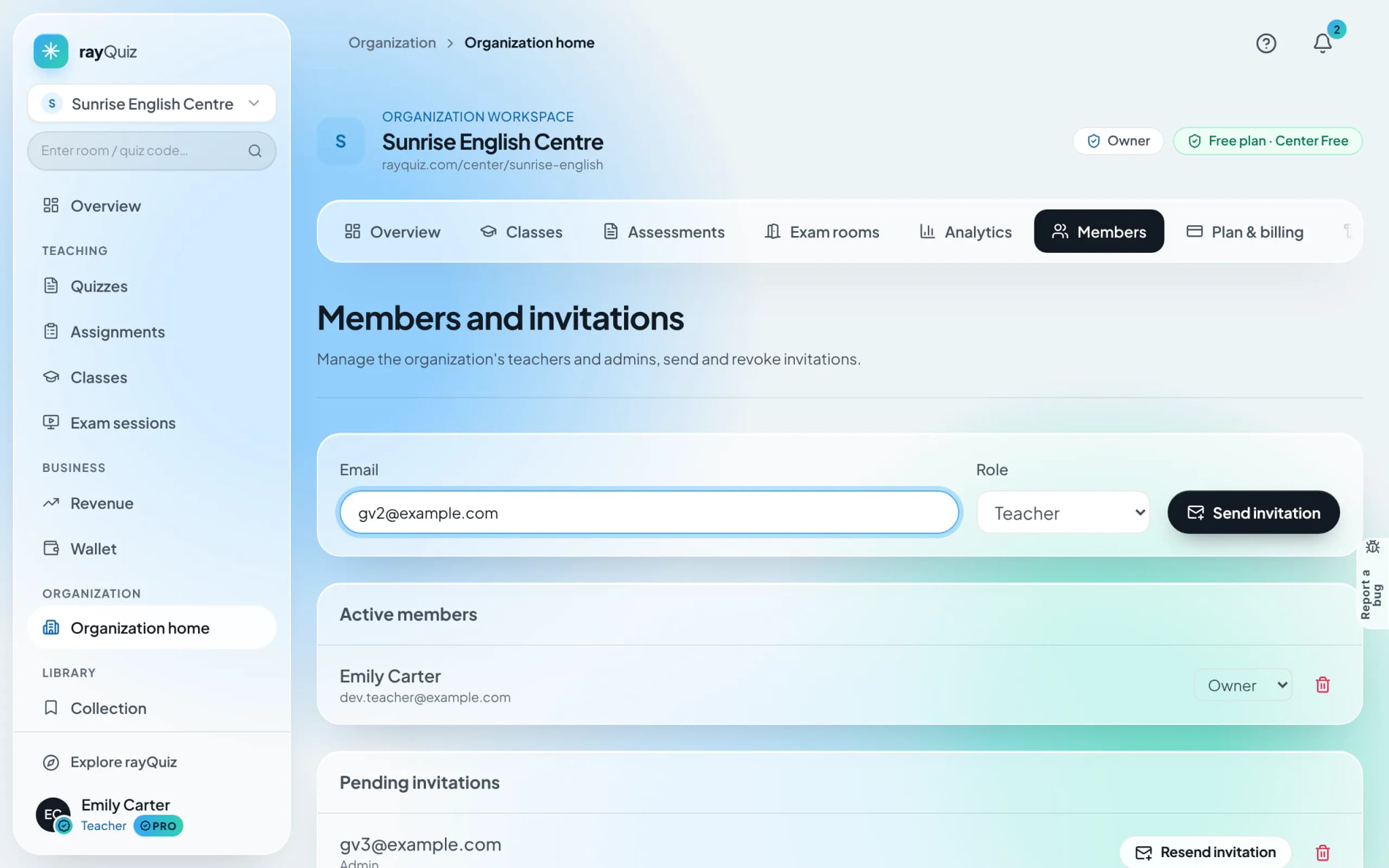
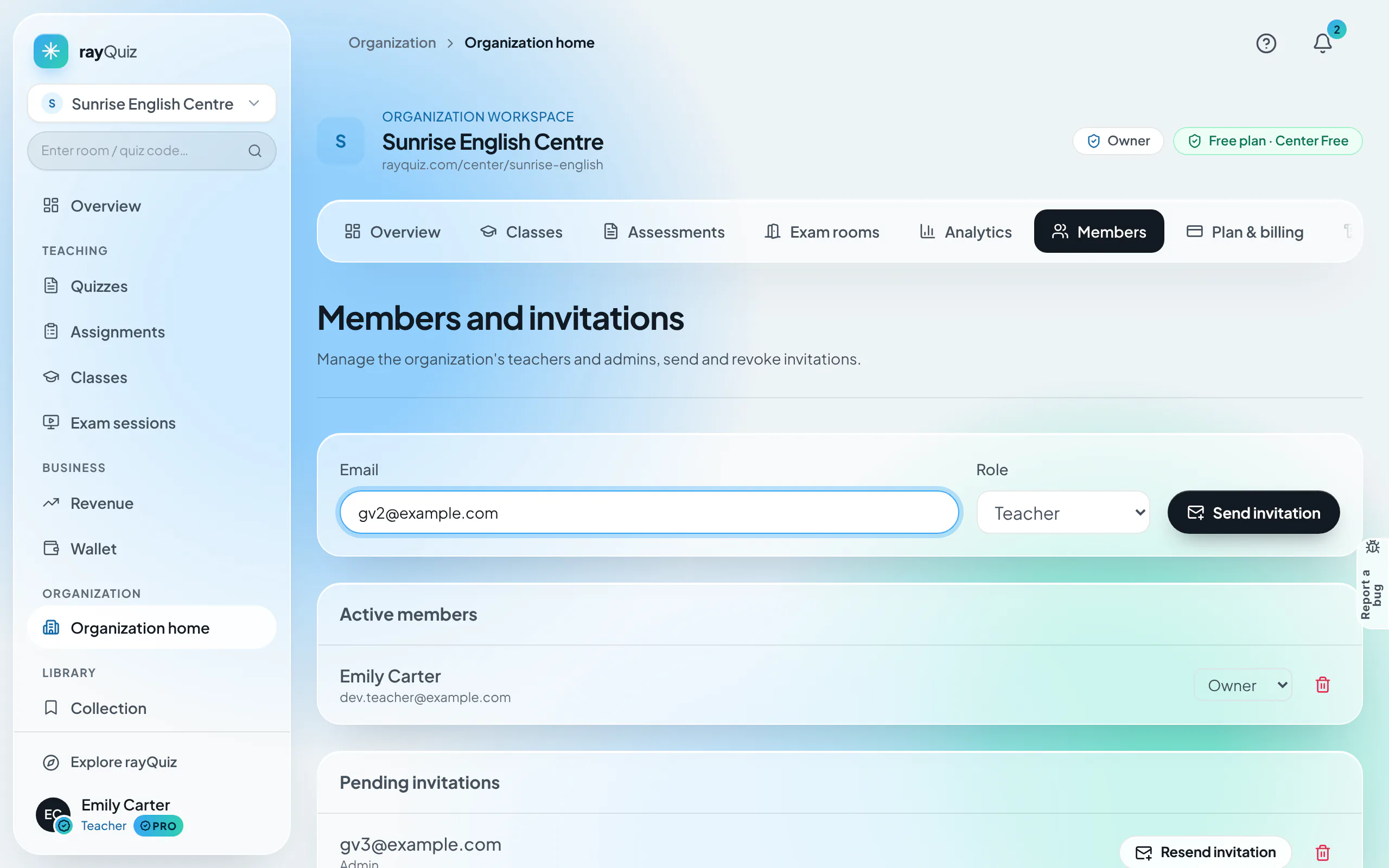
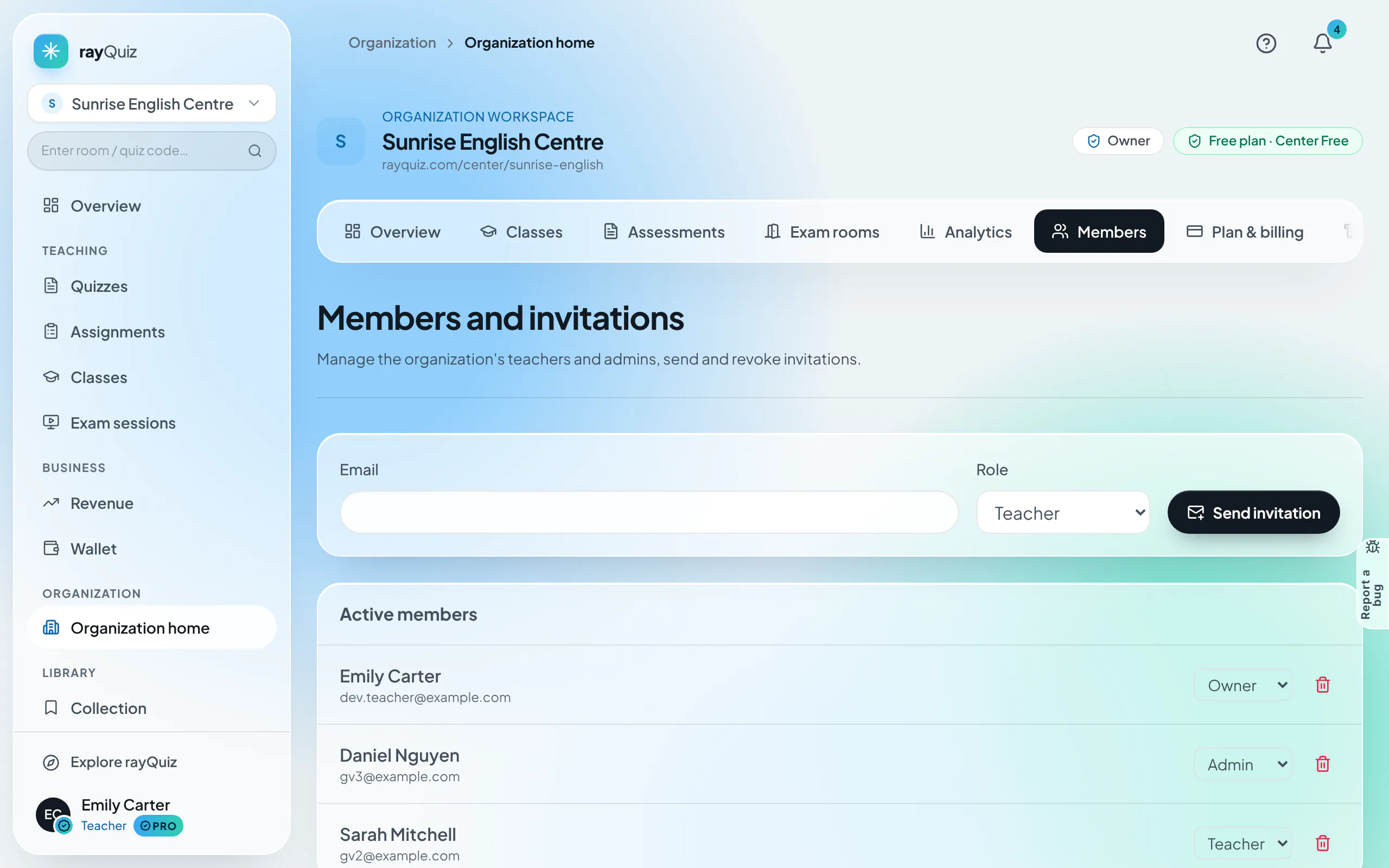
Under Members, enter the recipient’s email and choose a role: Owners hold full control; Admins manage billing, users, and all classes; Teachers create exams and oversee their own cohorts; Viewers access read-only analytics; Students are restricted solely to completing coursework.
- 2
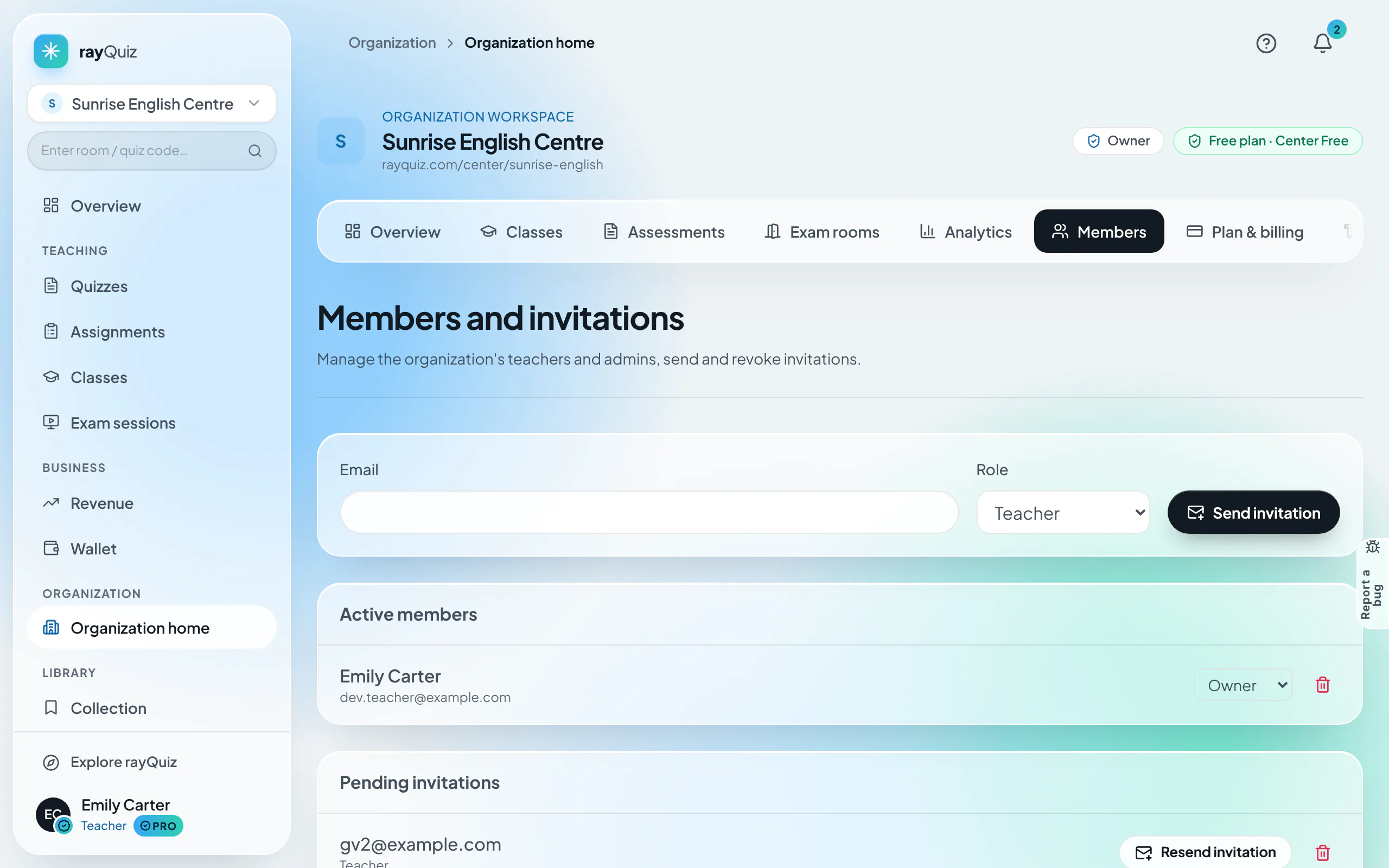
Track and revoke pending invitations
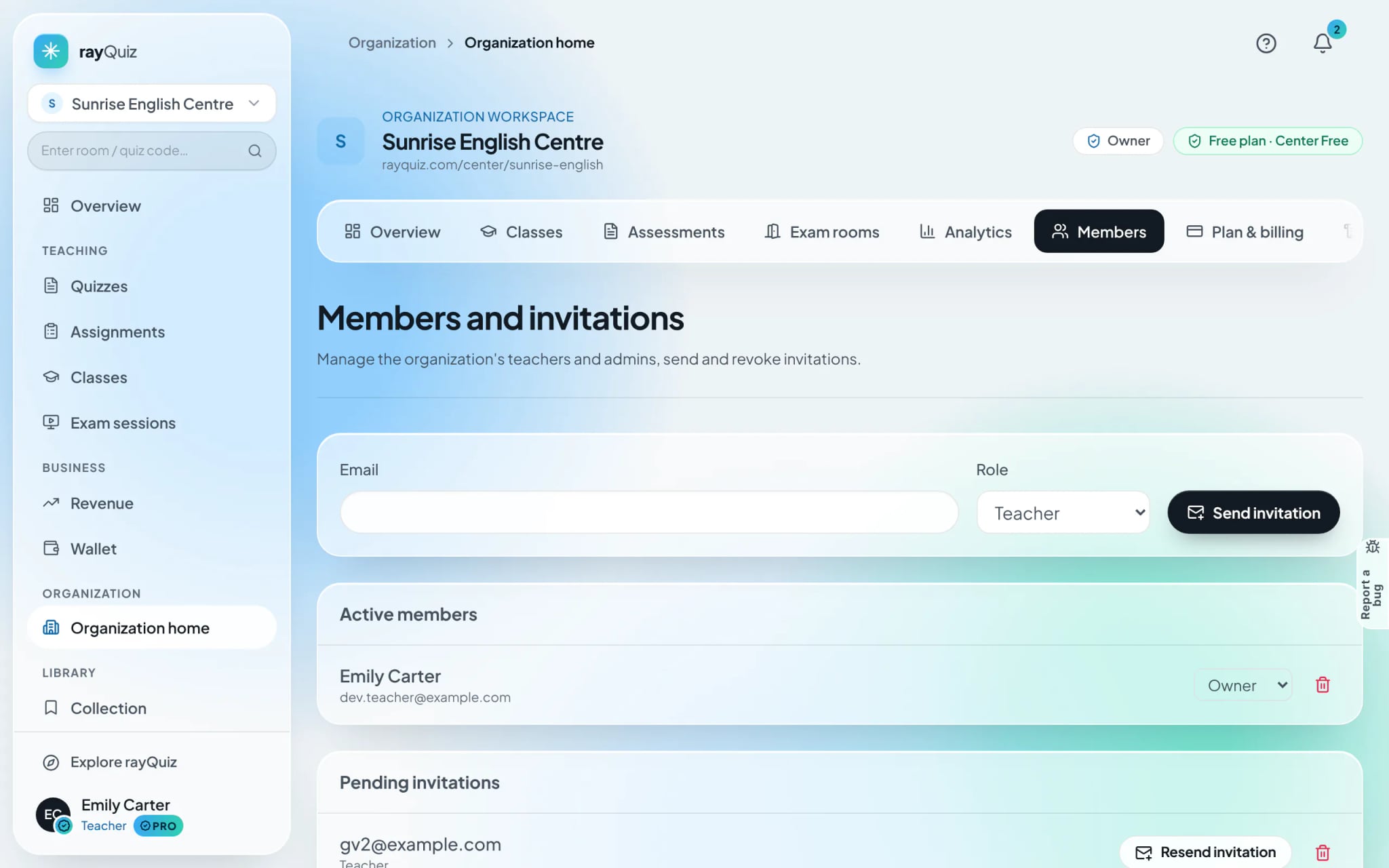
The "Pending invitations" tab lists unaccepted invites alongside their assigned role. If an invite was dispatched in error, click the bin icon to revoke it; the verification link expires instantly.
- 3
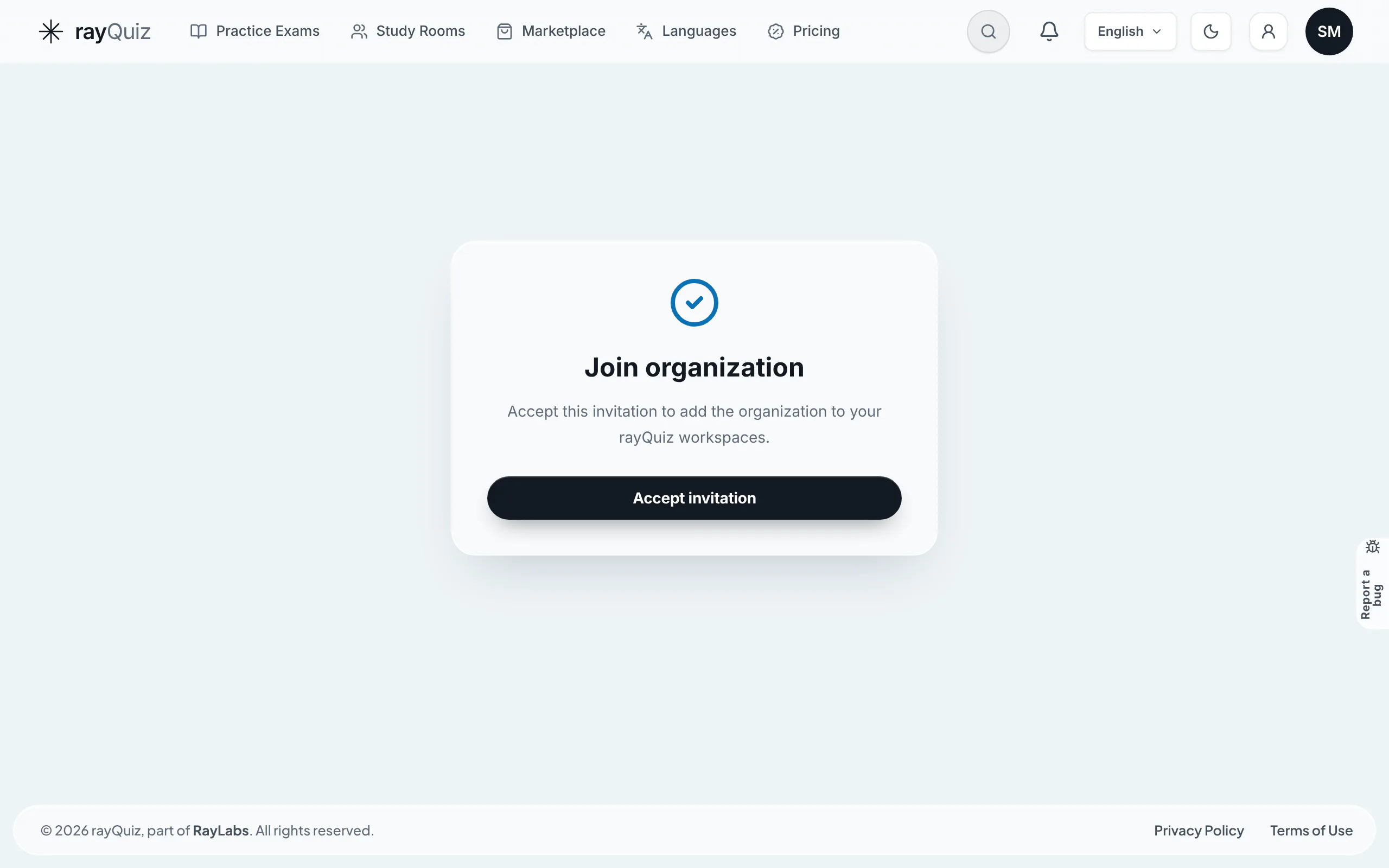
Invitee accepts and validates membership
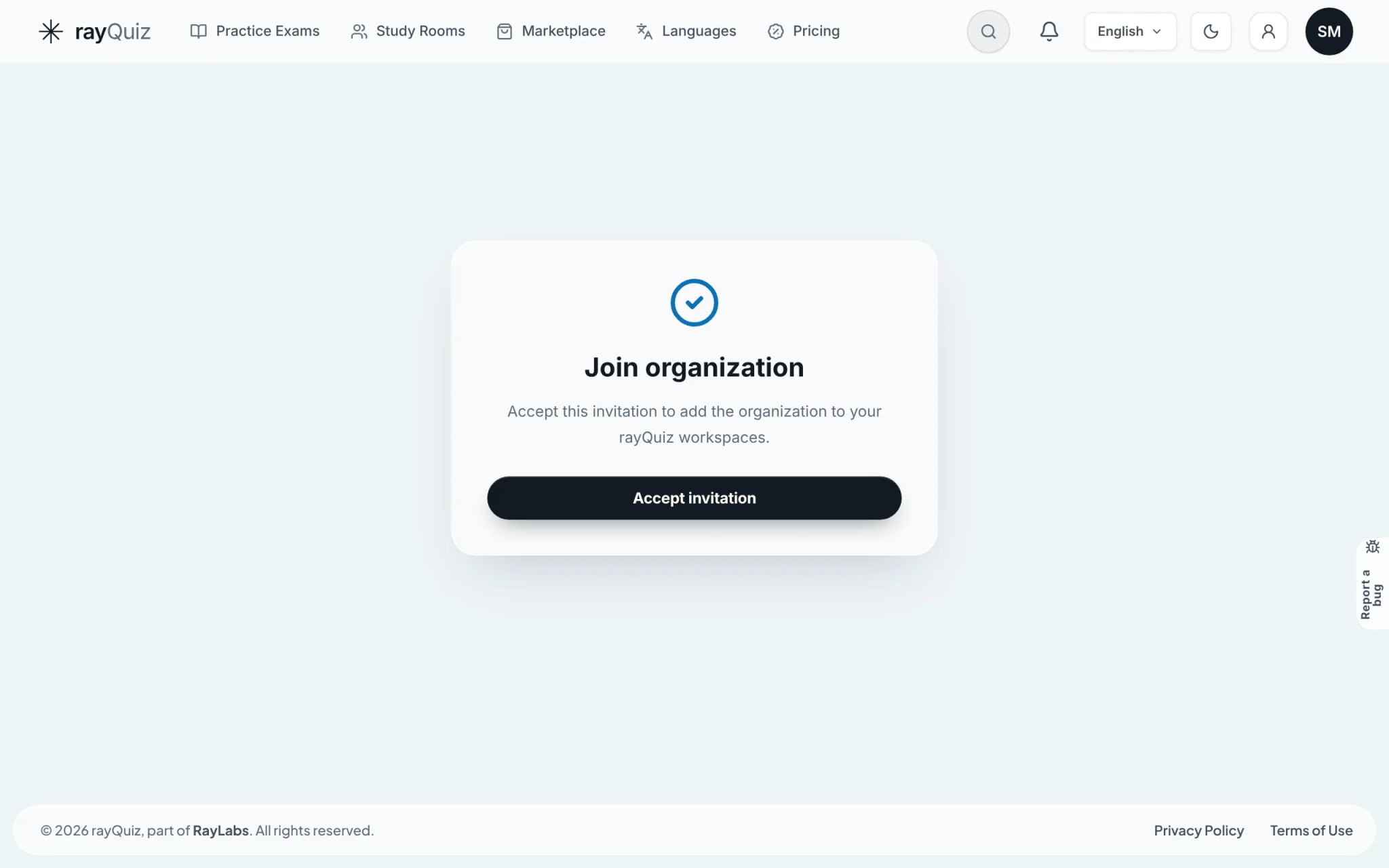
The recipient clicks the verification link in their email, signs in using the matching invited email address, and selects "Accept invitation". The organization instantly integrates into their workspace switcher.
Tip: An invitation is refused when the recipient signs in with a different email, so invite the address they actually sign in with.
- 4
Update permission tiers or remove inactive staff
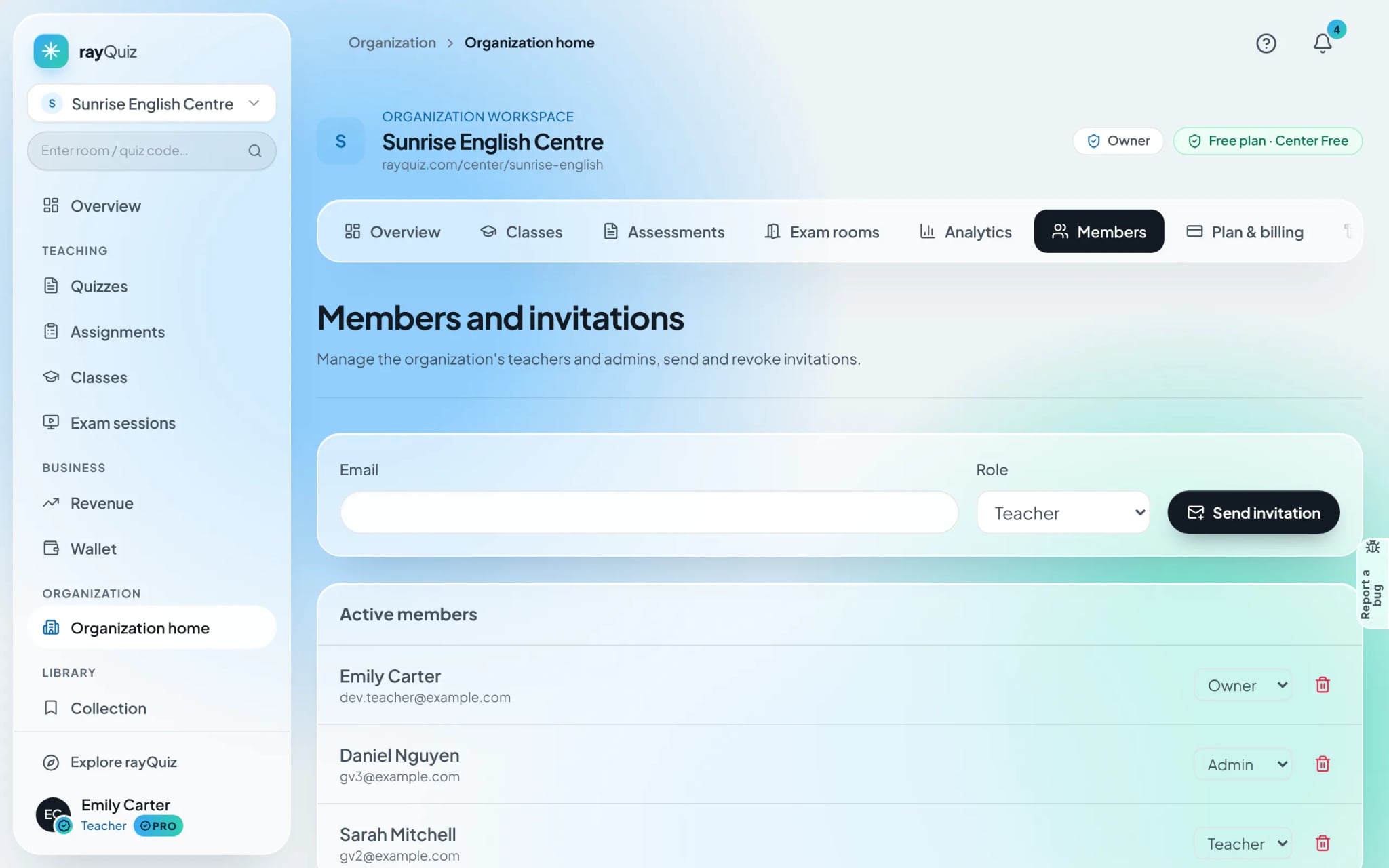
In "Active members", administrators can re-assign roles using the inline selector or remove departed staff via the trash icon. Every institution must always preserve at least one active Owner.
- 5
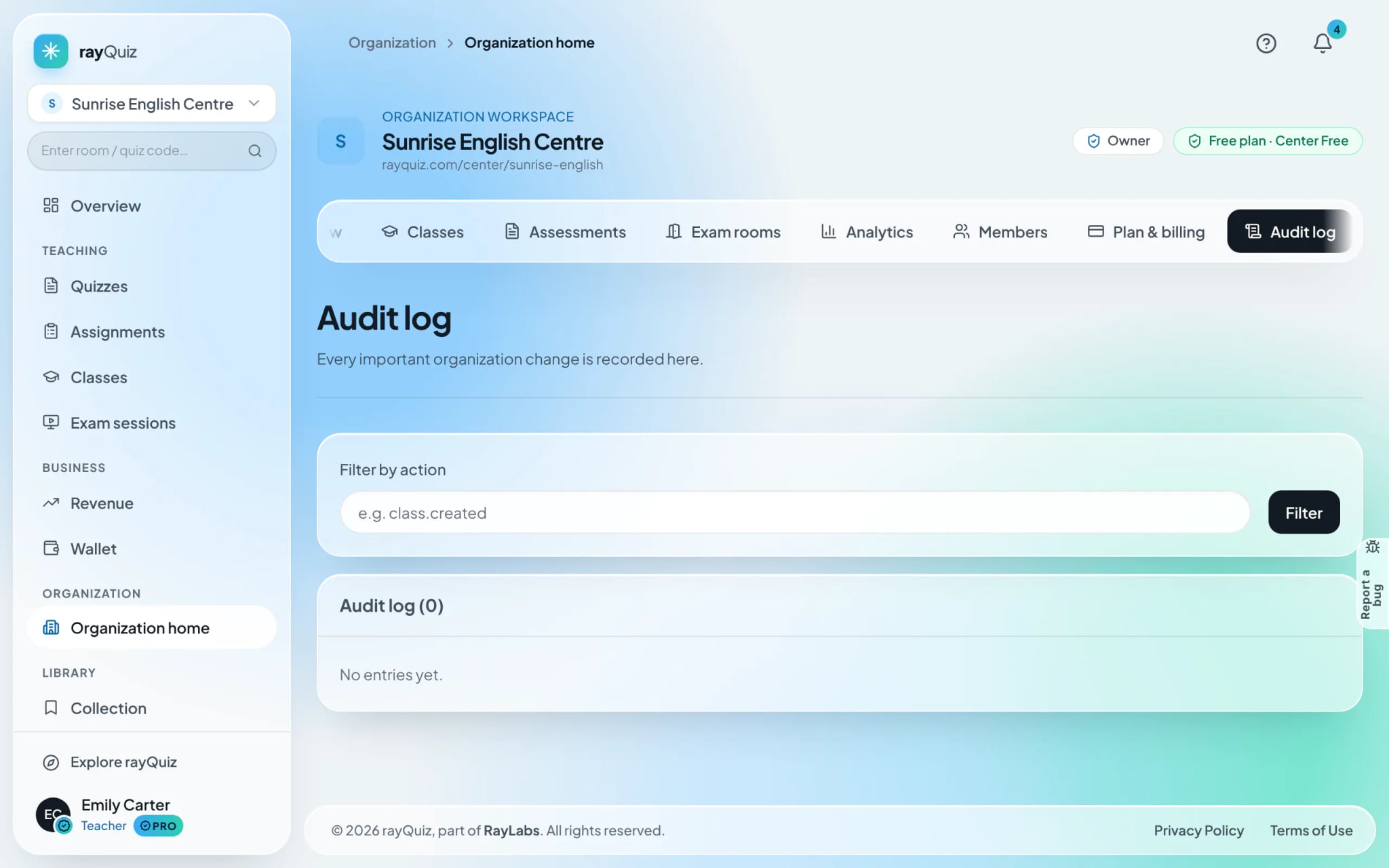
Review the comprehensive institutional audit log
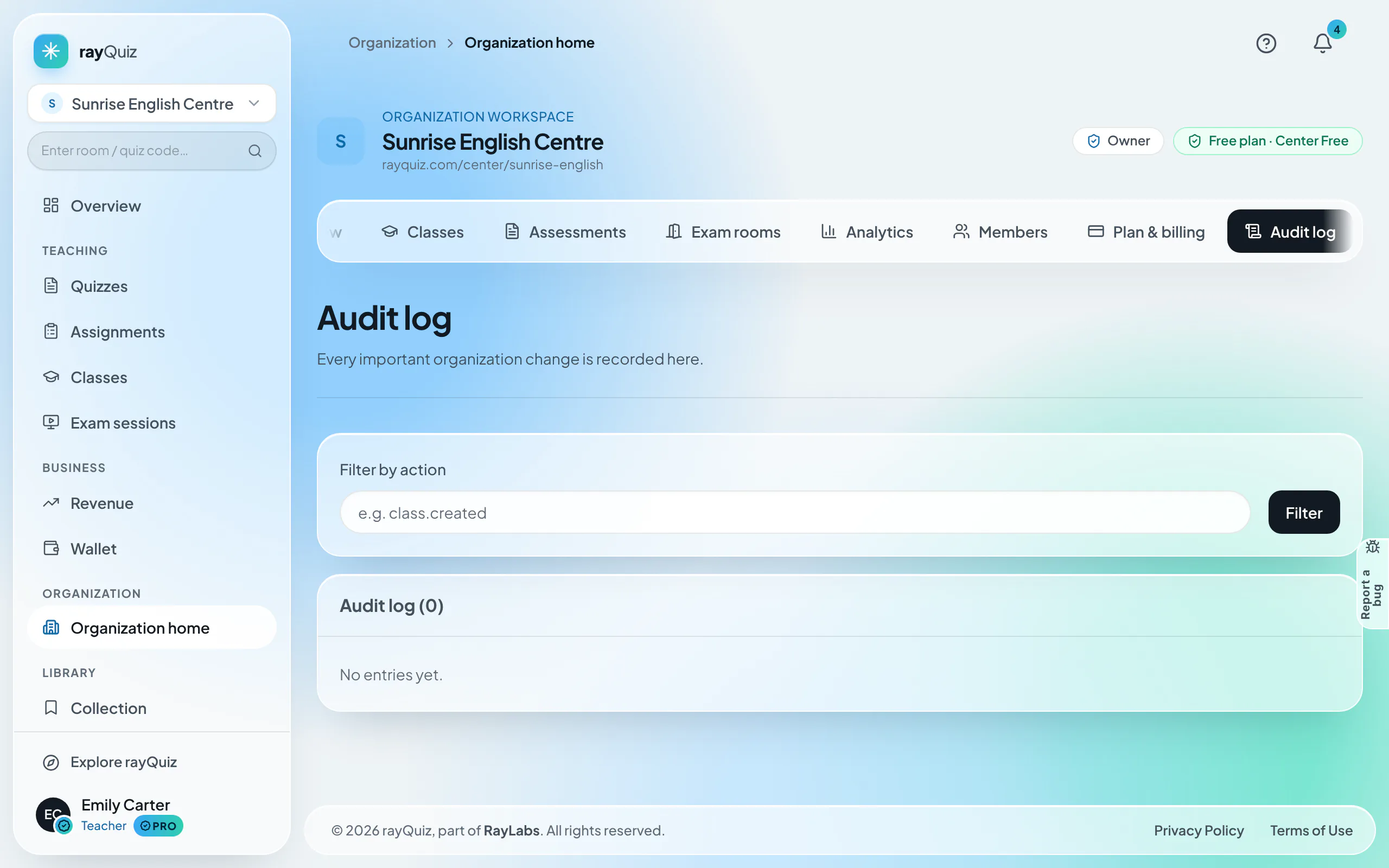
The Audit log documents every critical administration event: user invitations, role updates, classroom creations, and configuration changes, timestamped with user attribution. Use "Filter by action" to audit specific changes.
Frequently asked questions
- Is there a limit on members?
- Yes. The number of staff seats depends on the plan, and students do not use seats. Plan details are on the Pricing page.
- What happens to organization tests when a teacher leaves?
- Nothing is lost. Tests, classes and exam rooms created in the organization workspace belong to the center and remain after the member is removed.