Create tests
Create an online quiz using the split-screen live preview editor
Draft structured text questions, audit the interactive test-taker preview in real time, configure exam parameters, and publish.
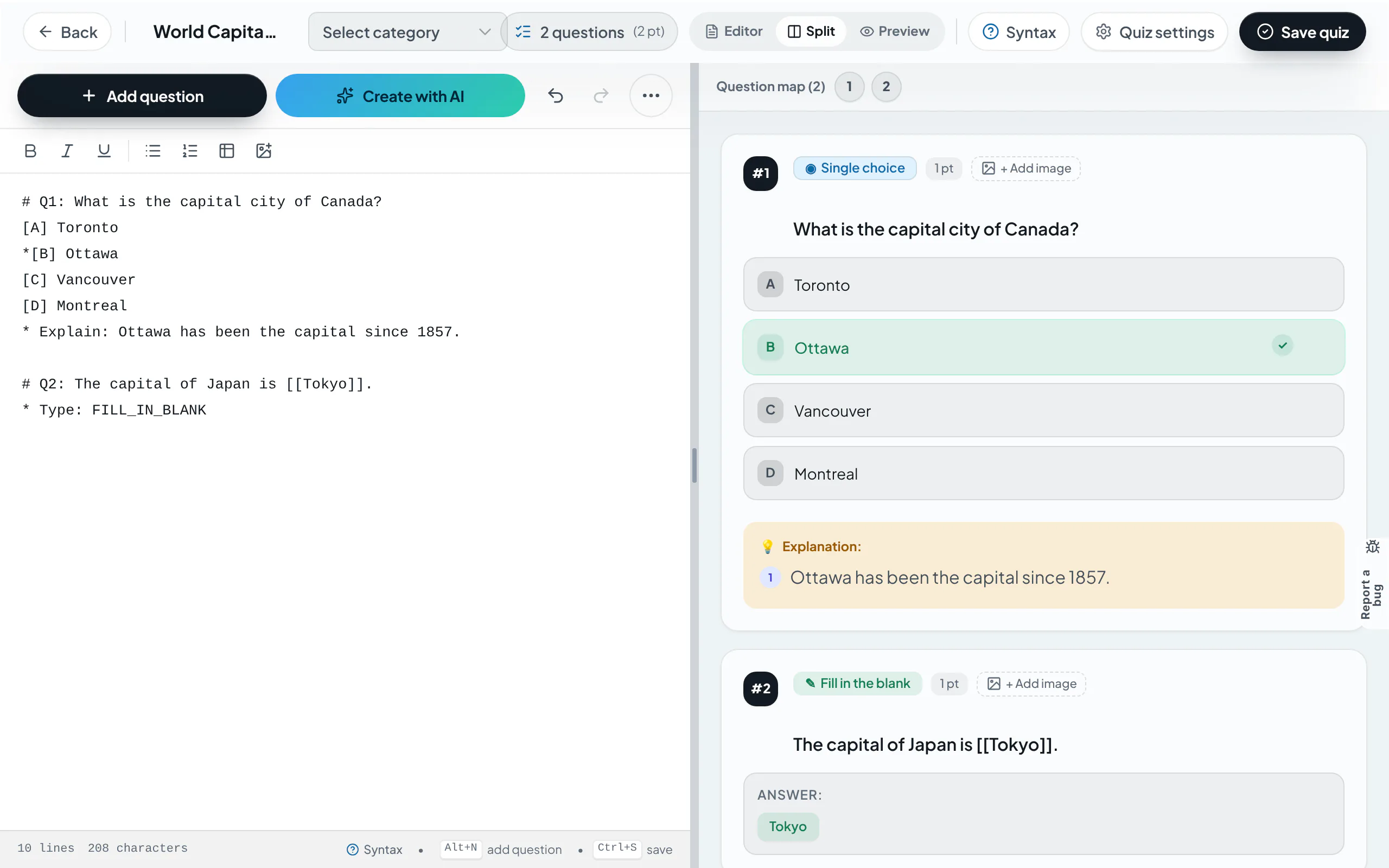
The rayQuiz editor streamlines assessment drafting using standard text markup. The engine automatically parses text structures into interactive questions while rendering an exact candidate view in the synchronized preview pane.
5 min · 6 steps
- 1
Initiate new quiz creation
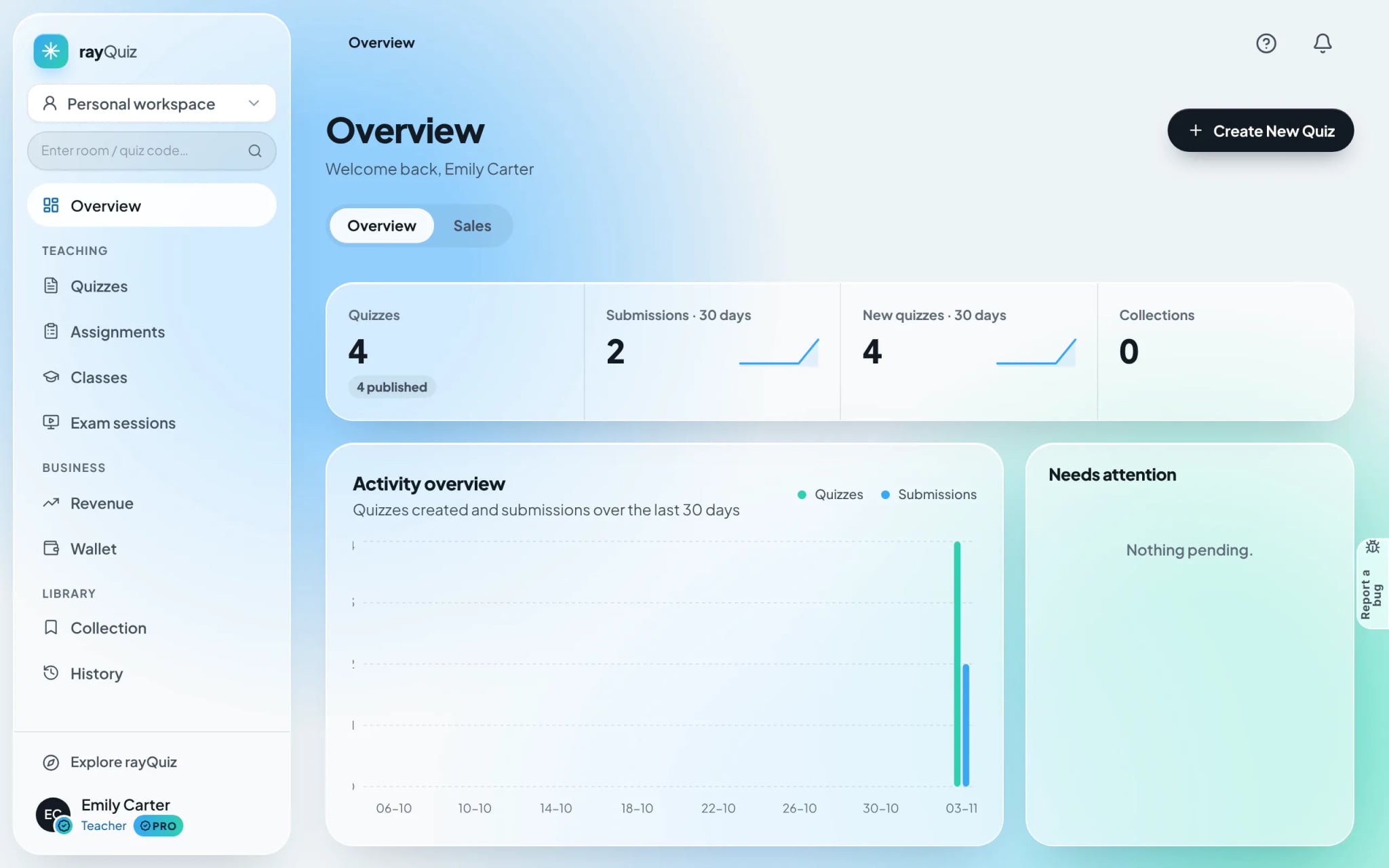
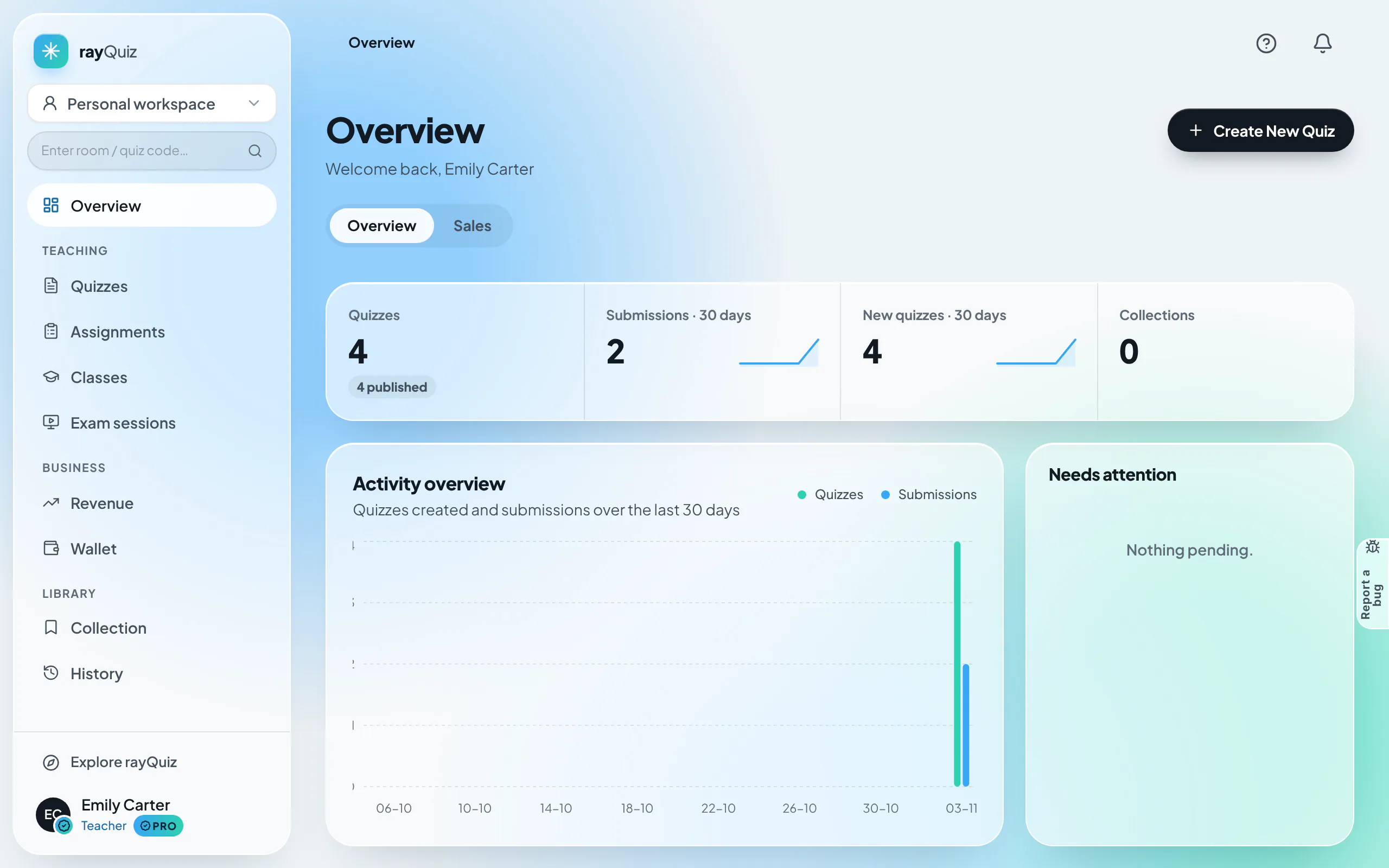
Sign in with a teacher account. On the Overview dashboard or within the "Quizzes" section in the primary navigation, select "Create New Quiz".
- 2
Define assessment parameters and drafting mode
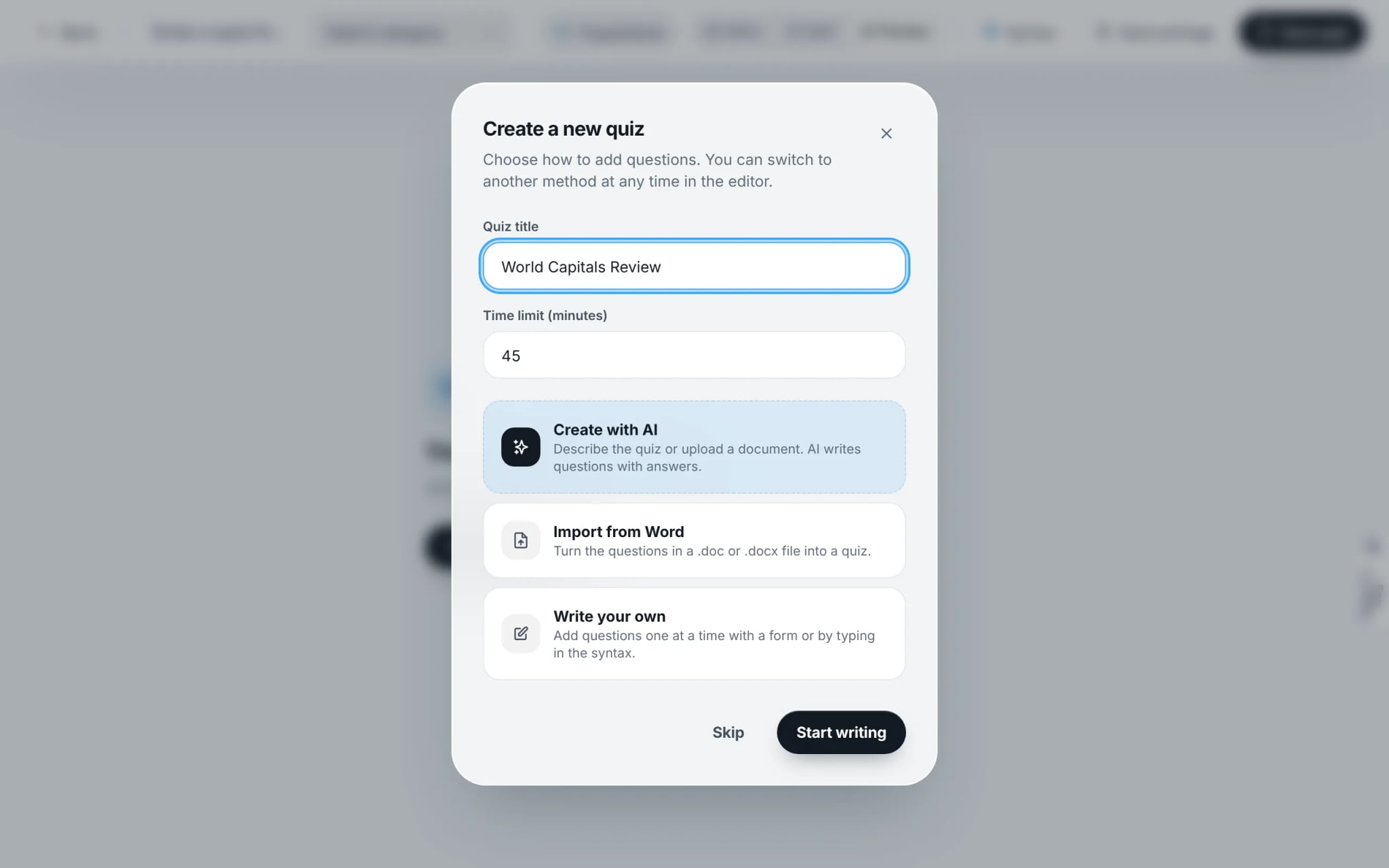
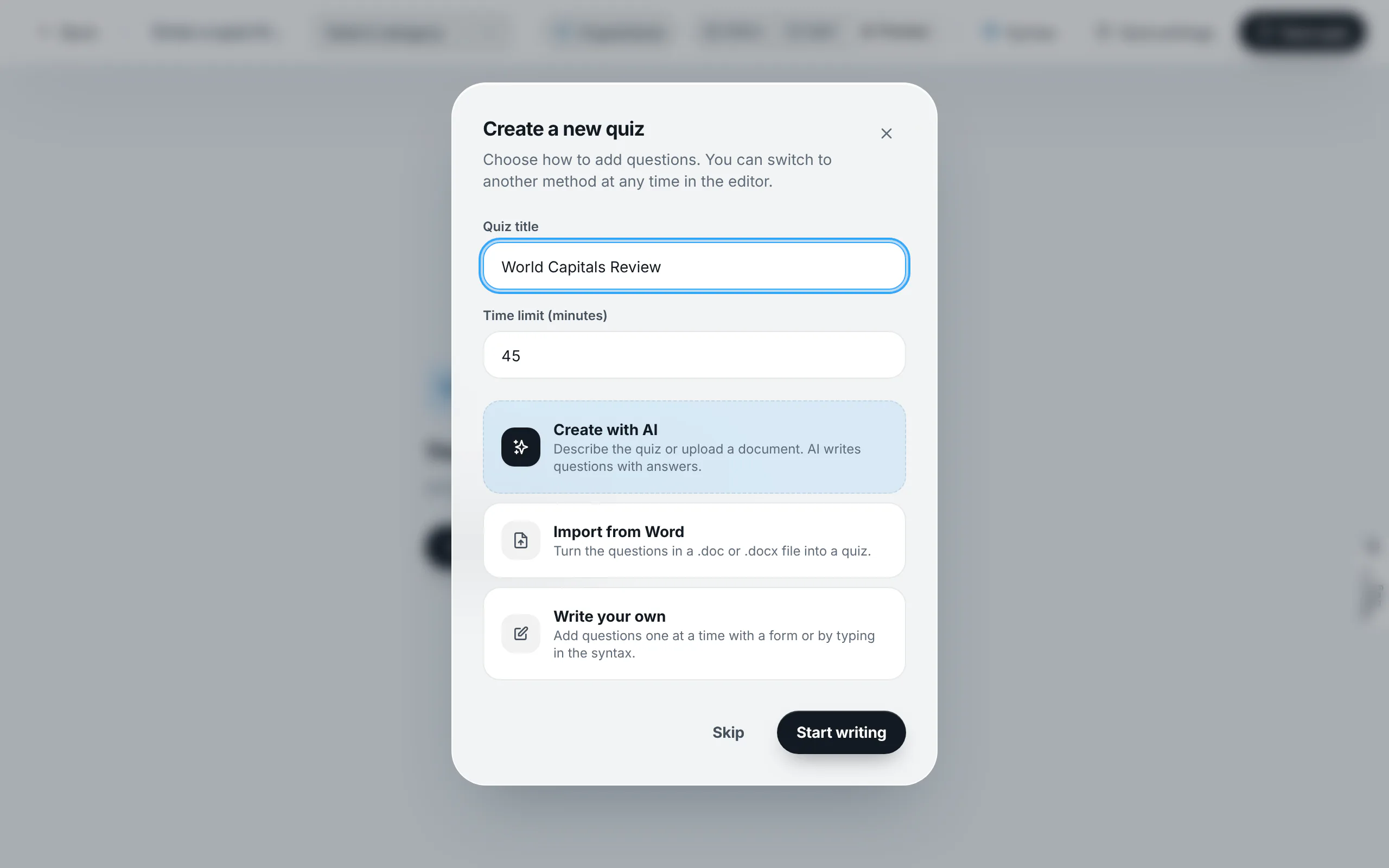
In the setup dialog, enter the quiz title and designated duration in minutes. Select from three authoring workflows: "Create with AI", "Import from Word", or "Write your own". Choose "Write your own" for manual authoring.
- 3
Compose questions in split-screen view
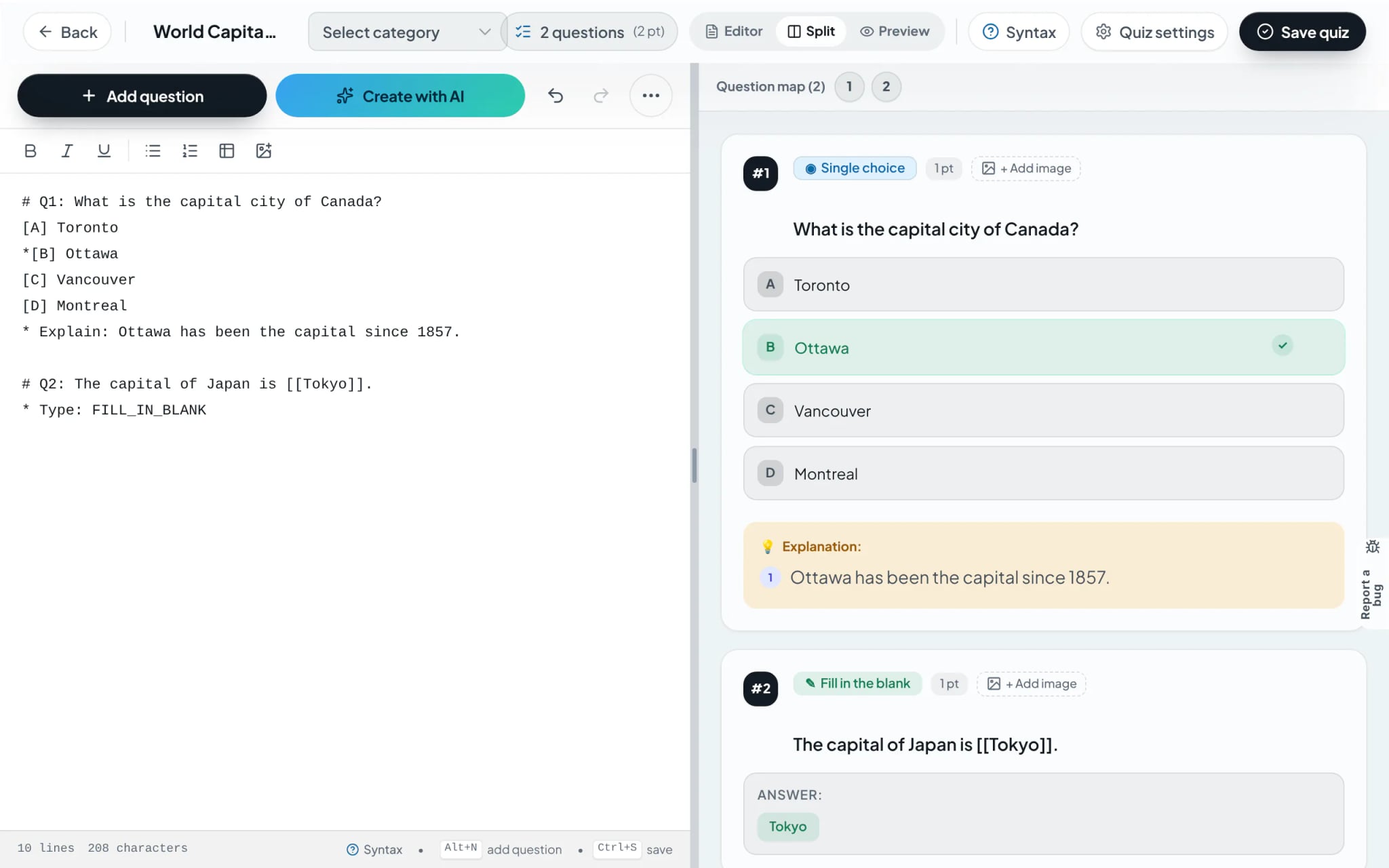
The "Split" layout anchors the text editor on the left and the candidate preview on the right. Formatting conventions: Prefix questions with "# Q1:", "# Q2:"; list choices on separate lines; mark the correct key with an asterisk (*) prefix (e.g. *B. Paris); and enclose text-entry blanks inside double brackets [[ ]].
- 4
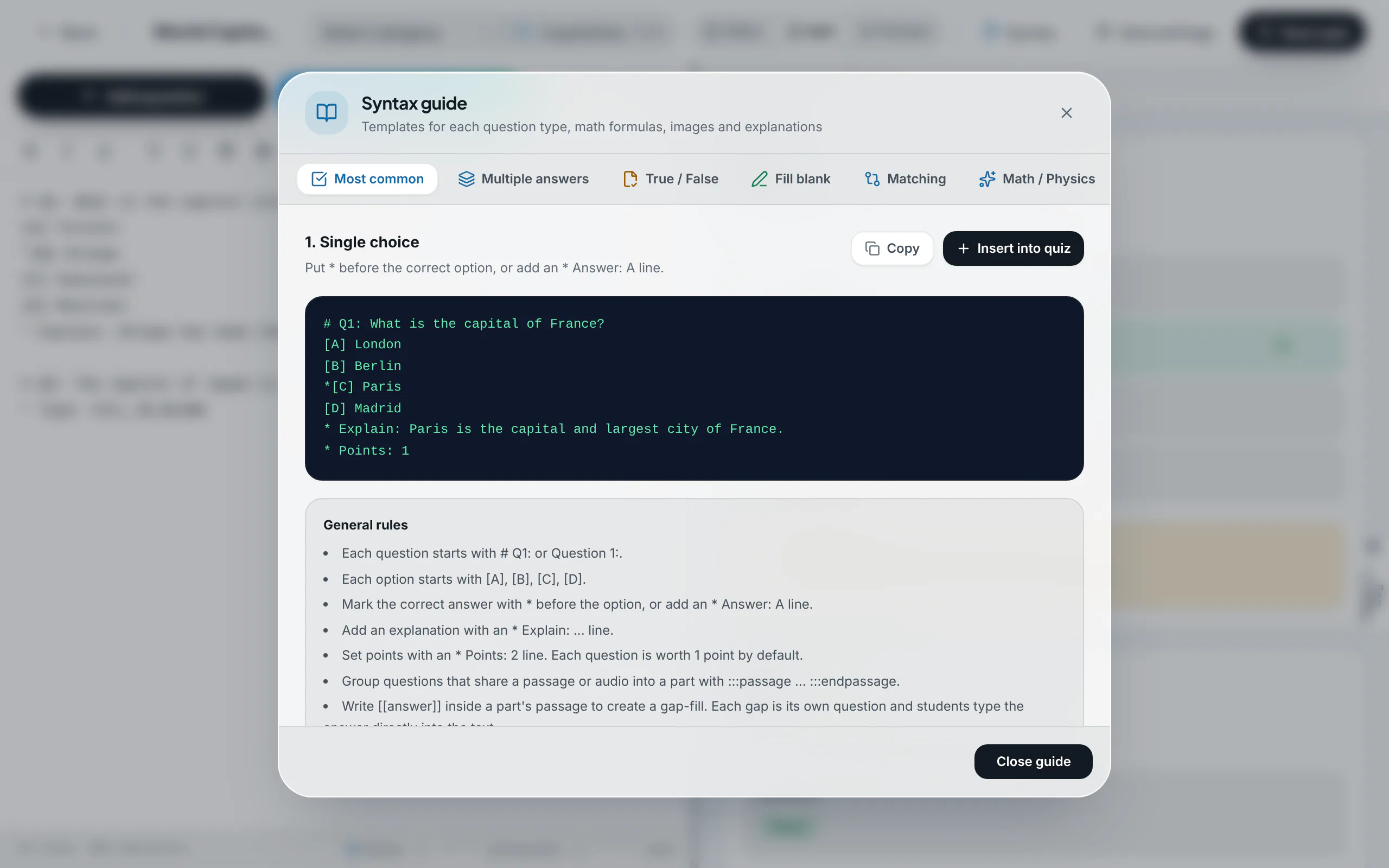
Consult the syntax reference cheatsheet (Alt + H)
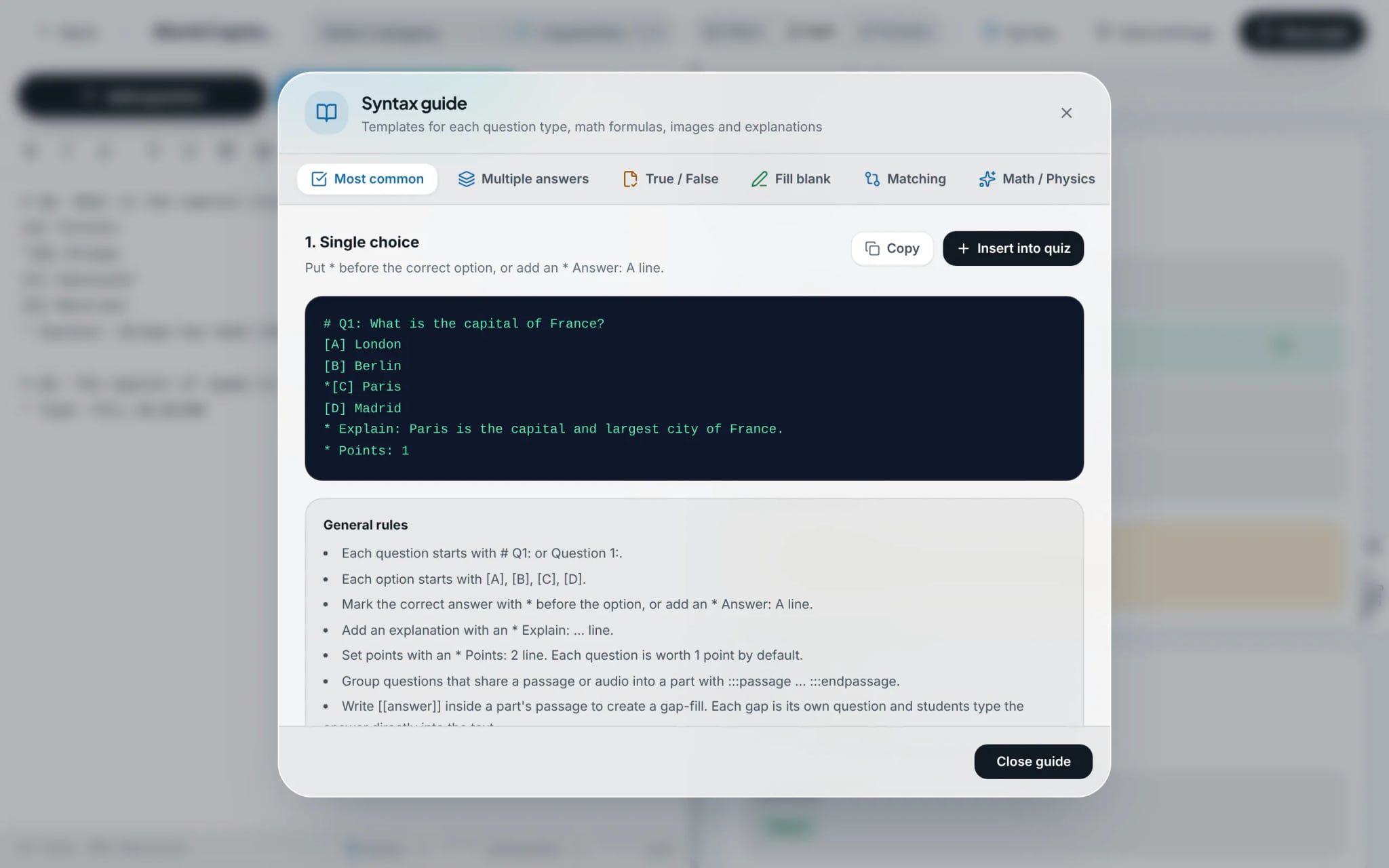
Select "Syntax" or press Alt + H to inspect formatting conventions. The library covers single-choice, multiple-response, True/False, gap-fills, matching tables, LaTeX mathematical expressions, and reading passages. Select "Insert into quiz" to append templates directly into the buffer.
- 5
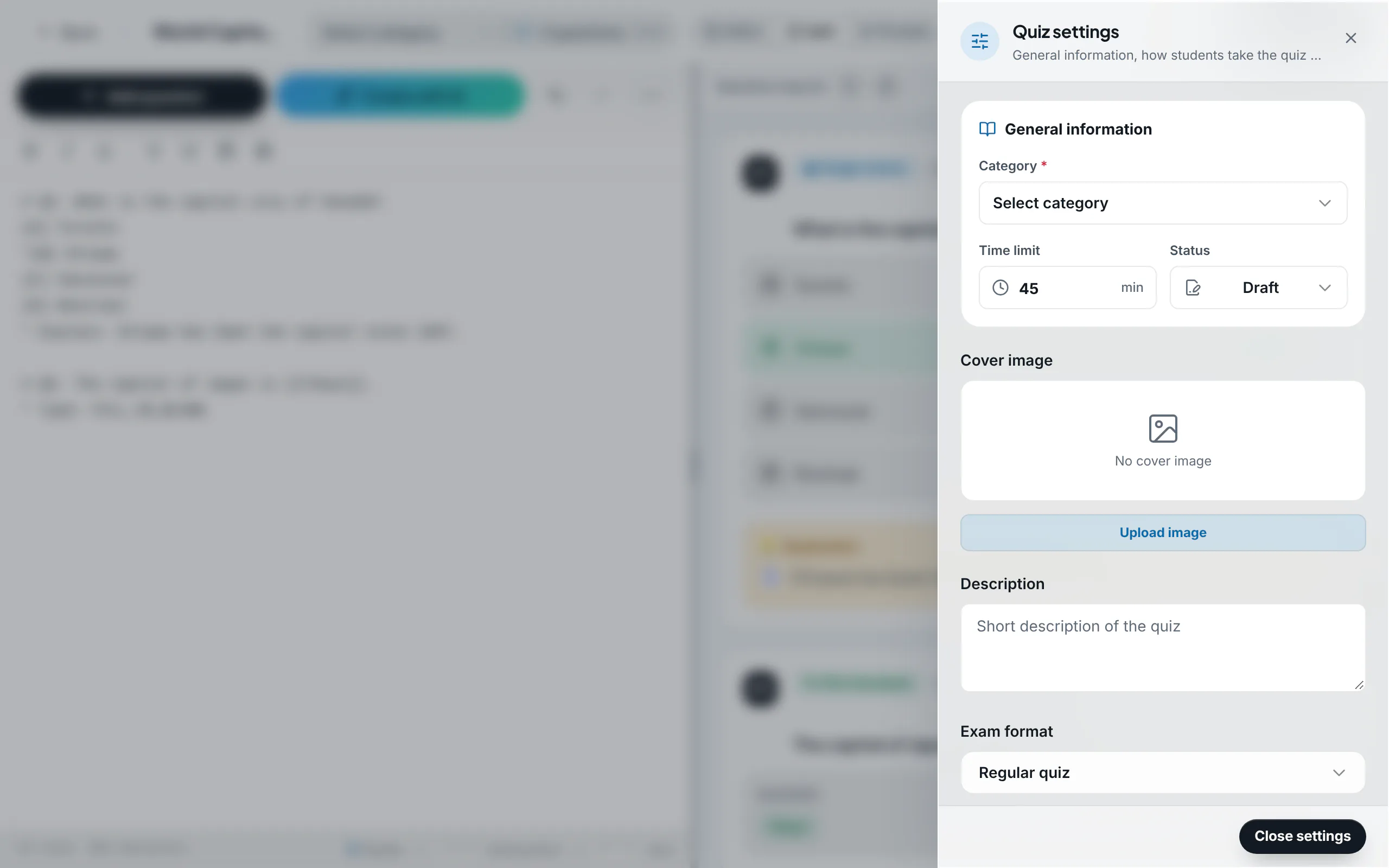
Configure assessment parameters and disclosure policies
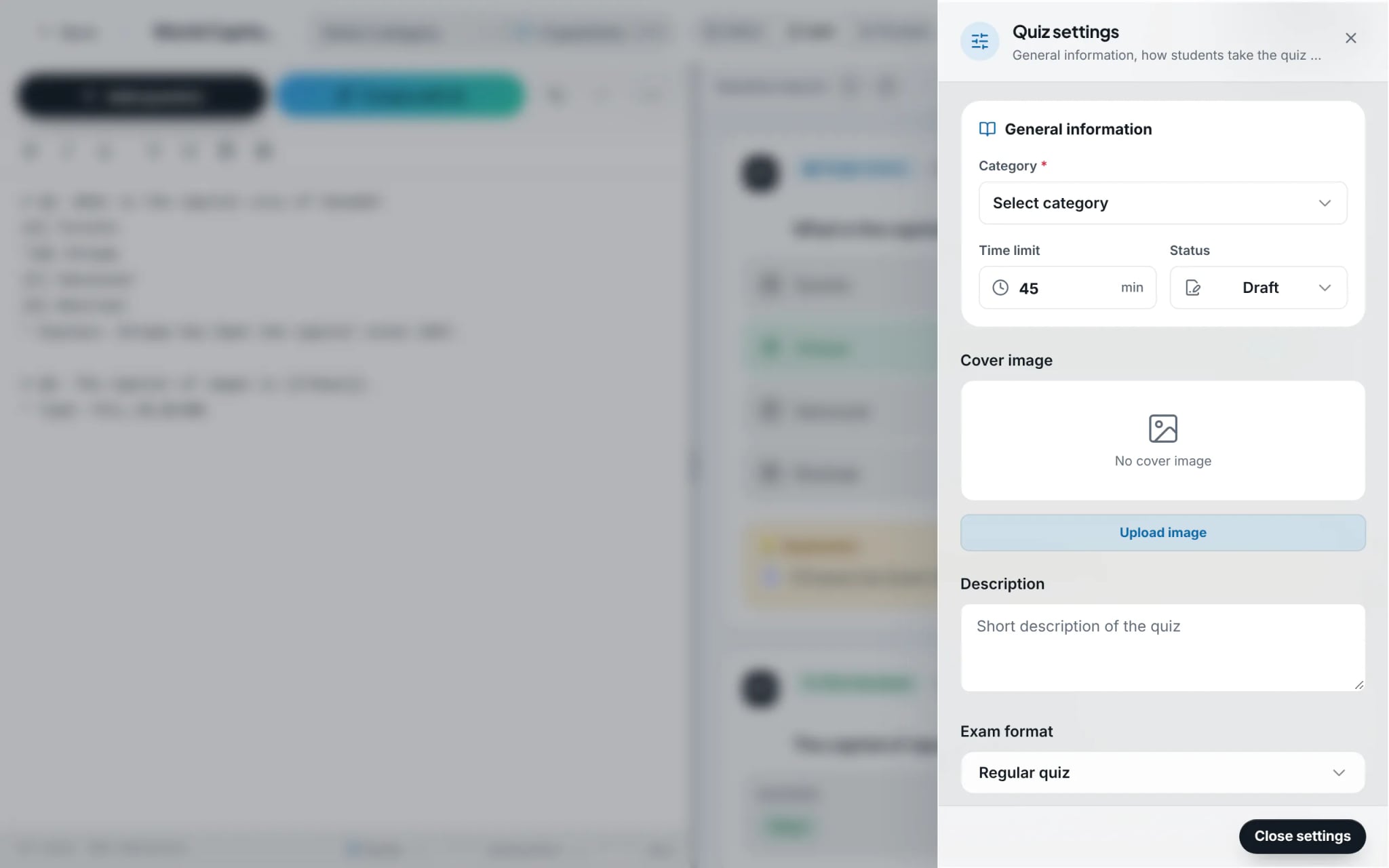
Open "Quiz settings" to configure: Subject category, Duration limit, Visibility status (Draft or Public), Cover image, Scoring model, and Post-submission disclosures (scores only, scores with answer keys, or full worked solutions).
Tip: Newly initialized quizzes default to "Draft" status. Switch visibility to "Public" before distributing access links or assigning tasks to cohorts.
- 6
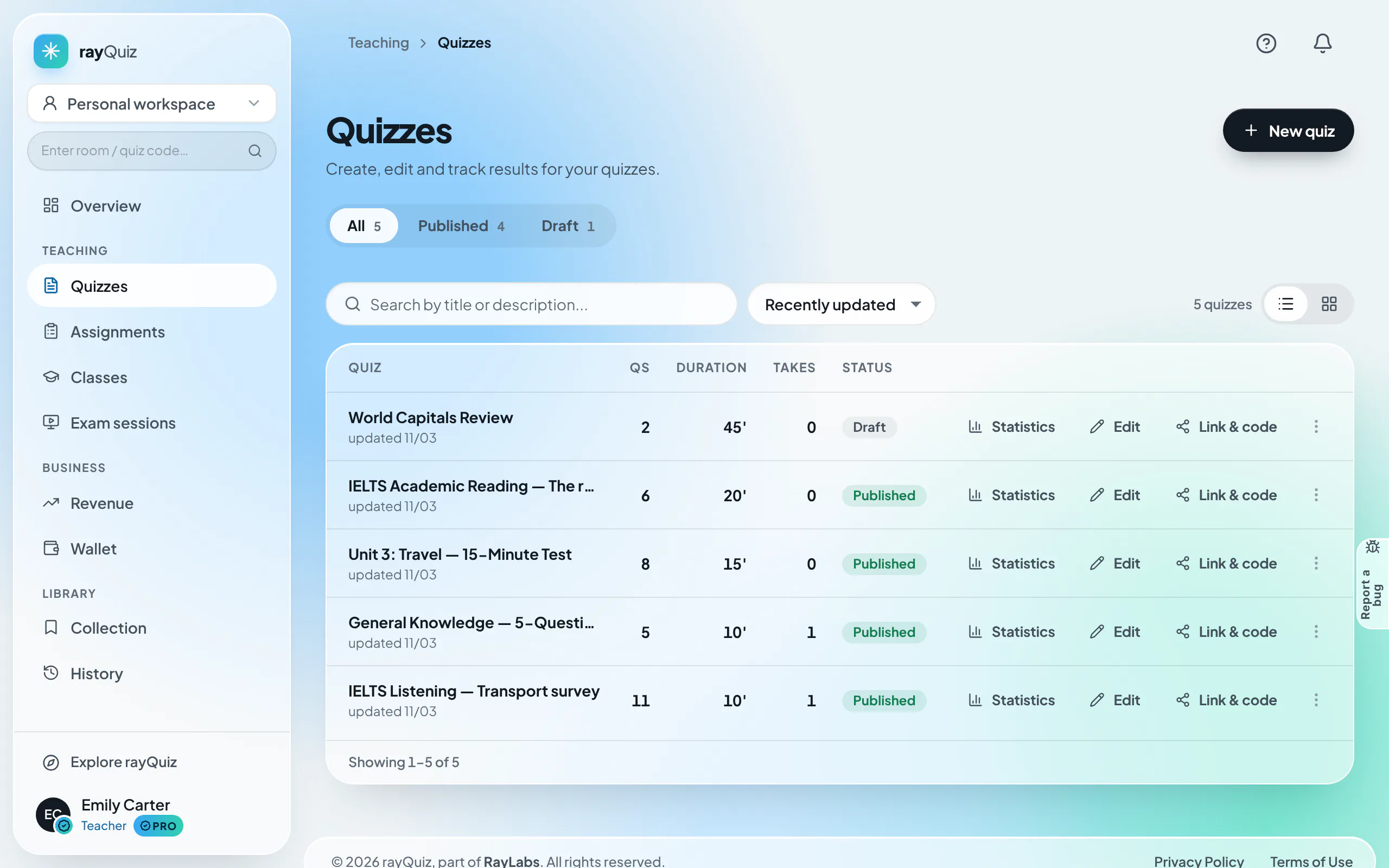
Save and manage assessment records
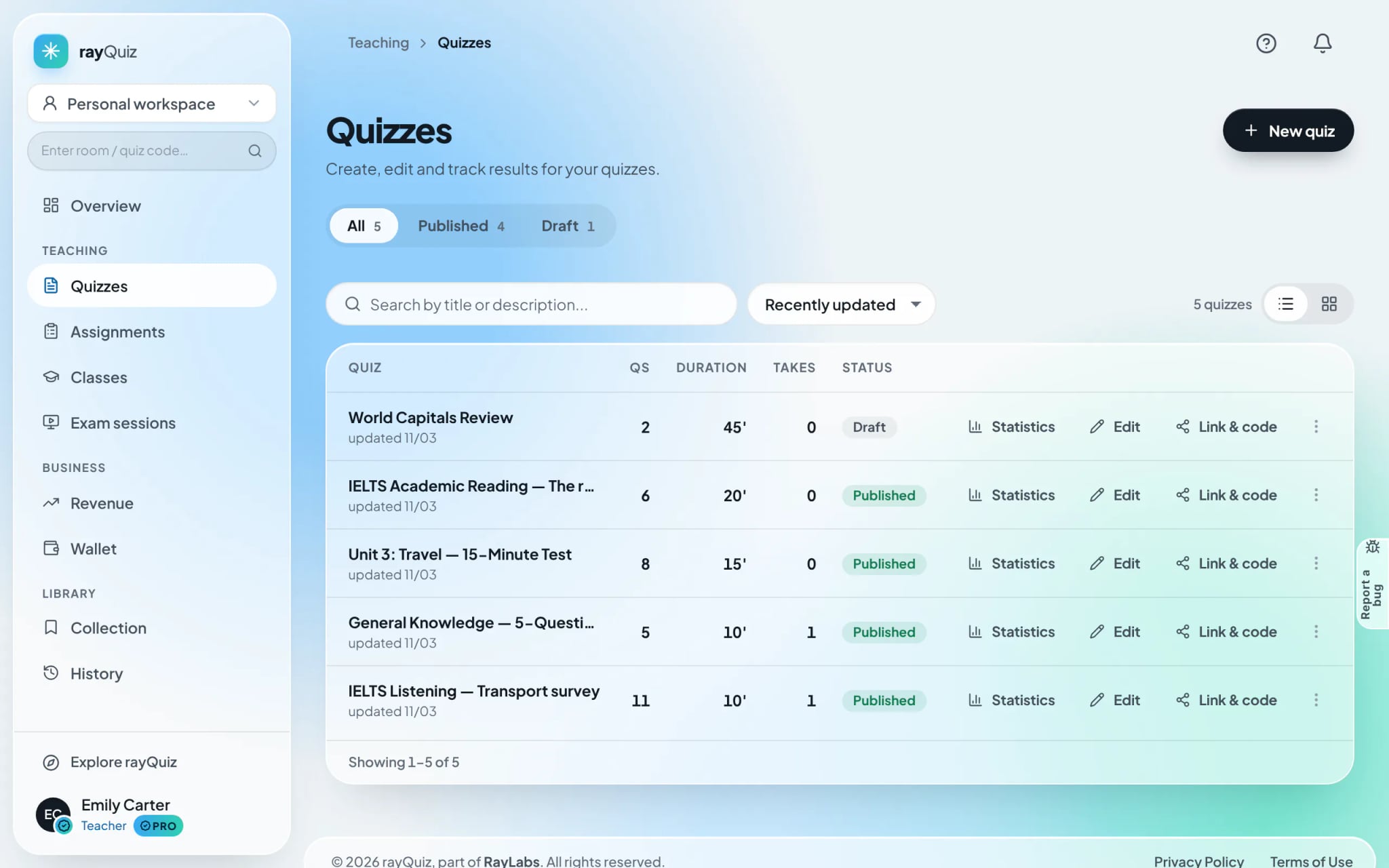
Select "Save Quiz". The assessment is committed to your repository with question counts, duration, attempt history, and visibility status. The repository facilitates subsequent revisions, link distribution, and cohort assignments.
Frequently asked questions
- Does the editor support embedded imagery and mathematical notation?
- Yes. The formatting toolbar provides dedicated utilities for direct image uploads and standard LaTeX mathematical syntax rendering.
- Do candidates require authenticated accounts to take public link tests?
- No. Public assessments accessed via direct links allow candidates to provide an identification name and commence testing without user registration.