Manual quiz editor
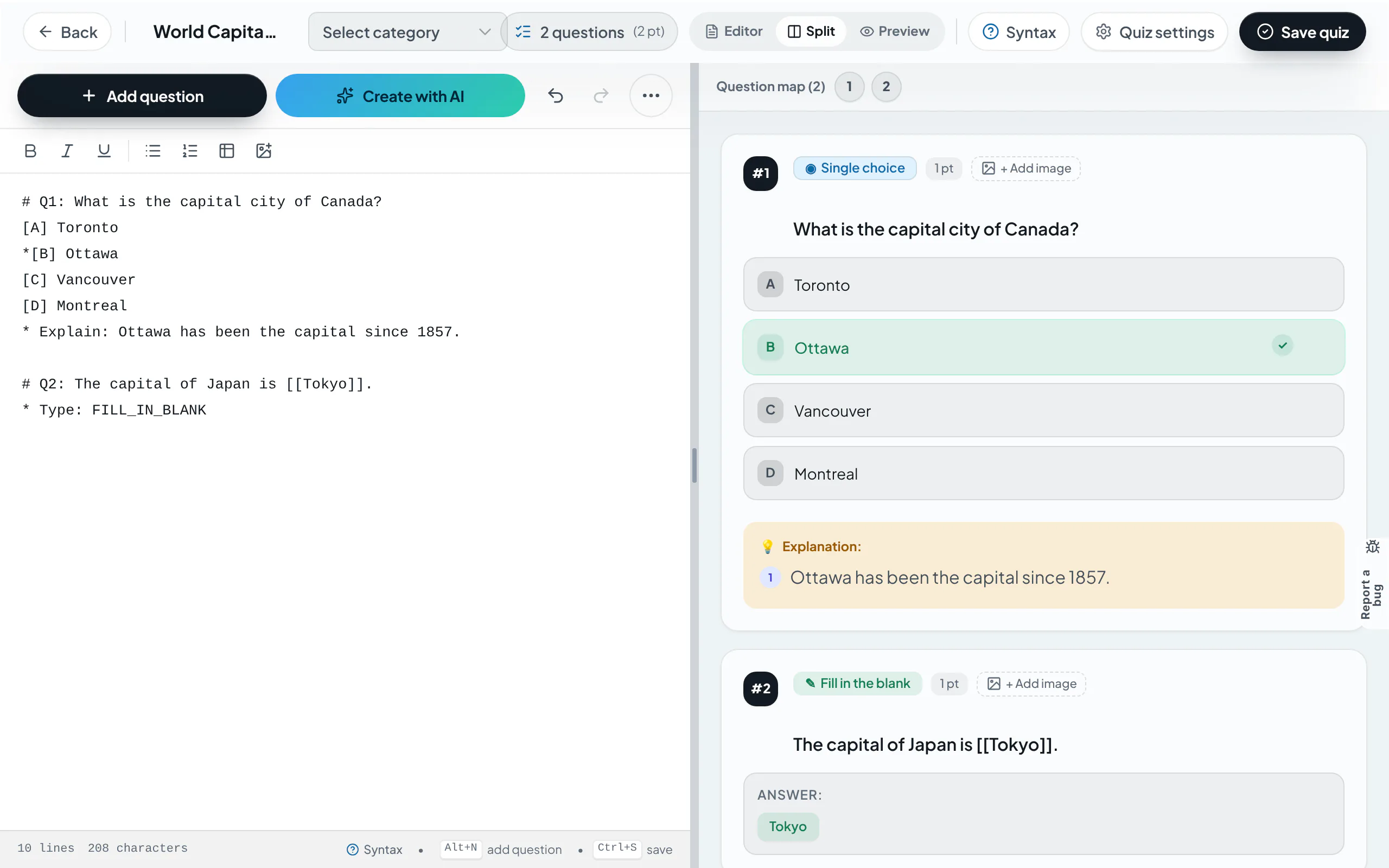
The rayQuiz editor lets you write a whole test as text, with a short syntax for each question type. The preview shows exactly what students will see.
Getting started
Select Create New Quiz, enter the title and duration, then choose "Write from scratch". The other two options, AI drafting and Word import, open their results in the same editor.
Basic syntax
- Each question starts with
# Q1:followed by the question text. - Options are written
[A],[B],[C],[D]; the correct answer has a*in front. - An explanation goes on a
* Explain:line under the question; students see it after submitting if the teacher allows. - The Syntax button (shortcut Alt + H) opens templates for every question type; insert one into the quiz with a single click.
Question types
| Type | How to write it |
|---|---|
| Single choice | One option marked with * |
| Multiple choice | Several options marked with * |
| True/False | The True/False template in the Syntax panel |
| Fill in the blank | The answer in [[ ]] inside the sentence; separate accepted spellings with |, for example [[centre|center]] |
| Matching | [L1] Left item -> [R1] Right item |
| Maths | LaTeX between $...$ |
| Passage or listening | A :::passage block shared by a group of questions |
Fill-in answers ignore letter case and extra spaces; spelling must be correct.
Quiz settings
Quiz settings cover the topic, time limit, status (Draft or Public), cover image, exam format, attempt rules, scoring and what students see after submitting. Draft quizzes are visible to the teacher only.
Step-by-step guides with screenshots
- Create your first online quiz
- Turn a Word document into an online quiz
- Build an IELTS listening gap-fill
- Share a quiz with a link or QR code
For reading tests with several questions on one passage, see Passages and question groups.
Last updated: 08/11/2026