Run online tests and exams
rayQuiz offers three ways to put a test in front of students. All three mark answers automatically and keep the results; they differ in when students take the test, who can join and how closely it is supervised.
Three formats
| Format | Who can join | When students take it | Supervision |
|---|---|---|---|
| Homework | Students in the assigned classes | Between the opening time and the deadline | None |
| Proctored exam | Students in the class | The whole class at once, starting on time | Waiting room, live monitoring, anti-cheating |
| Exam room | Signed-in accounts with the room code (a center’s rooms admit its students only) | Within the room’s time window | Anti-cheating, live monitoring |
Homework
Create it under Assignments: choose a quiz, one or more classes, the opening time, deadline, duration and maximum attempts. "What students see after submitting" controls when scores and answers appear.
Proctored exams
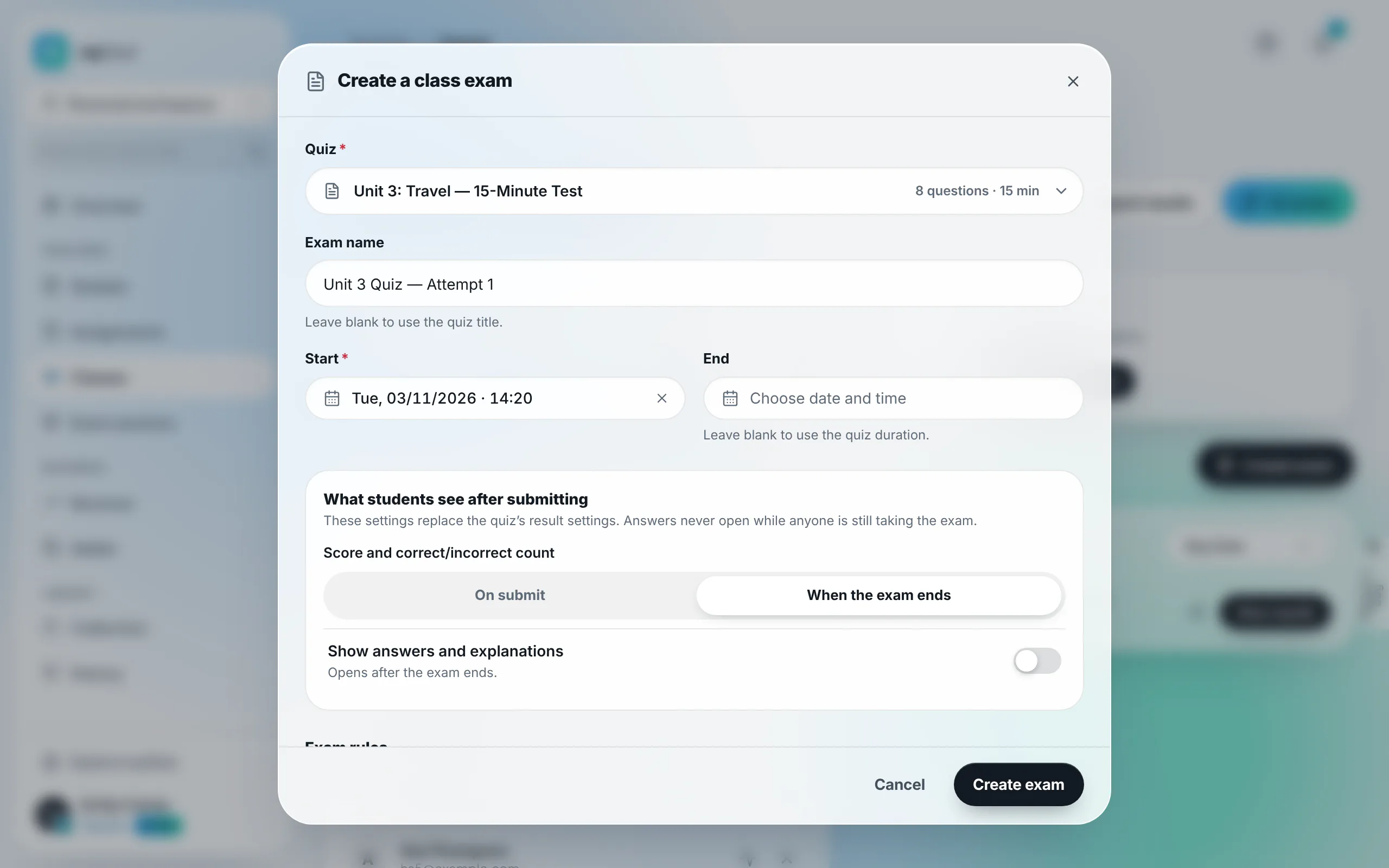
Create one from the class page with Create exam. Students wait in the waiting room before the start; the exam begins on time and the teacher follows each student’s progress on the monitoring screen. Scores and answers are hidden by default, and answers never open while anyone is still taking the exam.
Exam rooms
Create a room under Exam rooms with a quiz, start and end times and anti-cheating settings. The room receives a code to share with candidates. This format suits mock exams, placement tests and candidates who do not belong to a class.
Anti-cheating
Options include shuffling questions and answers, logging tab switches, requiring full screen and locking the attempt on exit. See Anti-cheating for online exams.
Step-by-step guides with screenshots
- Choose a format: homework, proctored exam or exam room
- Run a proctored online exam for a class
- Create an exam room for mock and placement tests
- Review results and statistics
In a personal workspace, Exam rooms are part of Premium. Current plan features are listed on Pricing.
Last updated: 08/11/2026